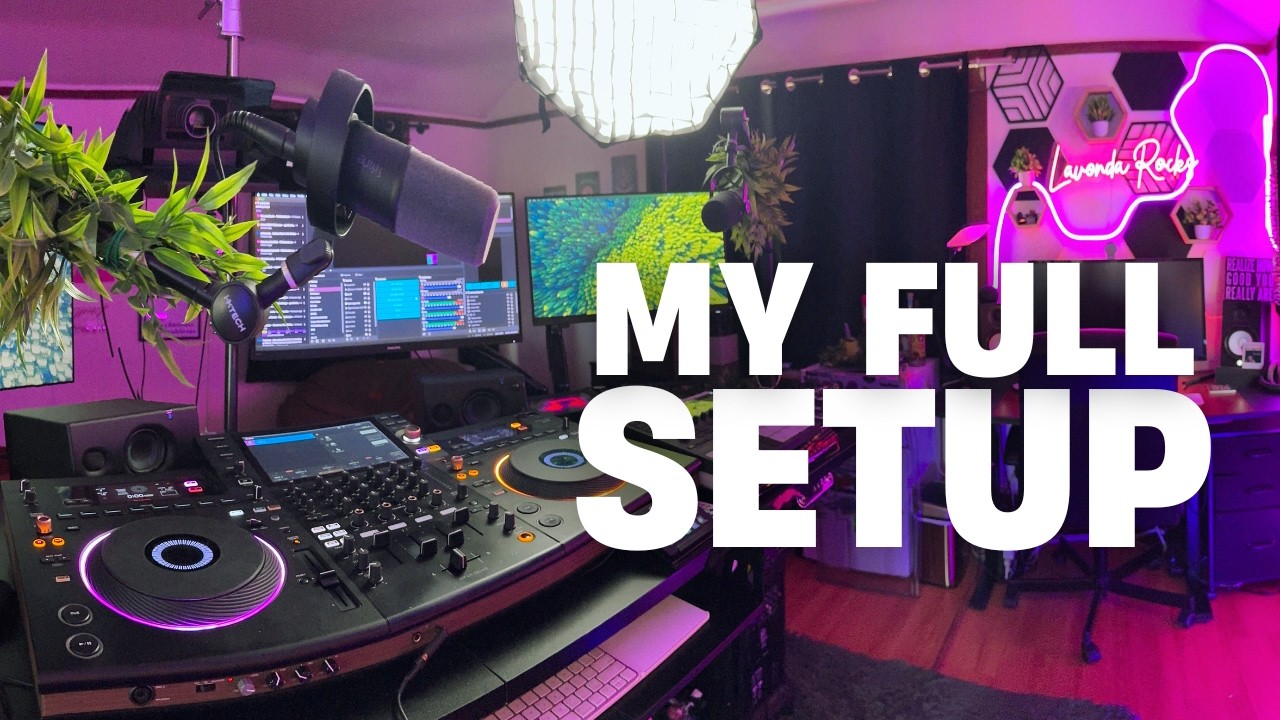
You've got the cameras. You've got the lighting. Your video looks sharp. But when you listen back to your stream recording, something's wrong — the music sounds thin, your voice is buried in the mix, and there's a persistent hum that makes the whole thing sound amateur.
Here's the truth DJs don't want to hear: viewers will forgive bad video, but they will not forgive bad audio. A pixelated stream with clear sound keeps people watching. A 4K stream with muddy, distorted audio loses them in seconds — as we covered in our guide to growing your streaming audience. It's been proven by every major streaming platform's user data — audio quality is the single biggest factor in viewer retention.
This guide covers everything you need to get professional audio on your DJ stream: microphone selection, routing your DJ mixer into OBS, applying the right filters (covered in our complete OBS Studio for DJs guide), setting up cue monitoring, and avoiding the most common mistakes that make DJ streams sound terrible.
Microphones for DJ Streaming: Dynamic vs. Condenser
The first decision is the most important: what microphone to use. Two main types dominate the streaming world, and they serve very different purposes.
Dynamic Microphones (Recommended for DJs)
Dynamic mics are the workhorses of live sound. The Shure SM58 is the gold standard for a reason — it's been used on stages worldwide for decades. Dynamic mics excel in noisy environments because they pick up sound primarily from the front and reject background noise. Your DJ mixer's hum, the cooling fans on your laptop, the rumble of your subwoofer — a dynamic mic ignores most of it.
Other excellent options include the Shure SM7B (the podcast and streaming industry standard, though it requires a cloudlifter or gain boost), the Rode PodMic (excellent value at under $150), and the Electro-Voice RE20 (the broadcast legend).
Condenser Microphones
Condenser mics are more sensitive and capture a wider frequency range. They sound "airier" and more detailed — great for voiceovers and quiet studios. But they also pick up everything: the click of your faders, the hum of your amp, the neighbour's dog. In a DJ environment with monitors, gear fans, and room echo, condensers often do more harm than good.
Our recommendation for DJs: Start with a dynamic mic. An SM58 or a Rode PodMic will give you clean, focused sound without requiring a treated room. If you have a quiet, isolated space and want maximum voice clarity, a condenser like the Audio-Technica AT2020 can work — but only with careful gain staging.
USB vs. XLR
USB mics (like the Blue Yeti, Rode NT-USB, or Samson Q2U) are plug-and-play — connect them to your computer and OBS recognizes them immediately. They're fine for starting out, but they introduce latency and lack the headroom of a proper XLR chain.
XLR mics require an audio interface (like the Focusrite Scarlett 2i2, Universal Audio Volt 2, or GoXLR). This gives you clean preamps, phantom power, direct monitoring (zero-latency headphone cue), and the ability to route audio properly. For a serious DJ streaming setup, XLR is the way to go.
Routing Your DJ Mixer Into OBS
This is where most DJs get confused. Your DJ controller or mixer outputs audio, but how do you get that into OBS without losing quality or adding latency?
Here are the three methods, from simplest to most professional:
Method 1: USB from DJ Controller (Simple)
Most modern DJ controllers (Pioneer DDJ series, Traktor S series, Roland DJ series) have a built-in USB sound card. Connect the controller to your computer via USB, and it appears as an audio device in OBS. Add an Audio Input Capture source in OBS and select your controller as the device.
Pros: No extra cables or hardware. Cons: The controller's internal sound card may introduce noise, and you can't easily separate cue and master output. Also, you're relying on the same computer for DJ software AND streaming — CPU load can cause audio dropouts.
Method 2: External Sound Card (Budget Professional)
Run RCA cables from your DJ mixer's Master/Record output to an external USB sound card (like the Behringer UCA202, Focusrite Scarlett Solo, or Native Audio Komplete Audio 1). Connect the sound card to your streaming computer. In OBS, add an Audio Input Capture source pointing to this sound card.
This isolates your streaming audio from your DJ computer. It's the cheapest way to get clean, dedicated audio into your stream. Many DJs run Traktor or Rekordbox on one laptop and OBS on another — the sound card bridges them.
Method 3: Audio Interface with Loopback (Pro)
An audio interface with loopback functionality (like the GoXLR, Rode RODECaster Pro, or Universal Audio Volt series) lets you route your DJ mixer's output AND your microphone into OBS as separate channels, while also sending audio back to your headphones for monitoring. The GoXLR, in particular, is designed for streaming — it has hardware compression, EQ, and voice effects built in.
This is the gold standard. Your DJ audio and your mic are independent tracks in OBS, each with its own filters, EQ, and levels. You can duck the music when you speak, apply different compression to your voice vs. the mix, and monitor everything with zero latency.
The OBS Audio Filter Chain
OBS includes five built-in audio filters that can transform a mediocre microphone into something that sounds professional. Apply them in this order by right-clicking your microphone's audio mixer channel in OBS and selecting "Filters":
1. Noise Suppression
Removes constant background noise — fan hum, air conditioning, traffic. OBS comes with two options: RNNoise (free, surprisingly good, small CPU impact) and NVIDIA Noise Removal (better quality, requires an RTX GPU). Set it to -30 dB to start, or use the Speex DSP preset at -20 dB if RNNoise introduces artifacts.
2. Noise Gate
A noise gate silences your microphone entirely when you're not talking. This eliminates breath sounds, chair creaks, and the rustle of your clothing between phrases. Set the Close Threshold to around -40 dB and the Open Threshold to -28 dB. The Attack Time should be short (5-10 ms) so the gate opens instantly when you speak. Set Hold Time to 200 ms and Release Time to 100 ms for a natural fade.
3. Compressor
A compressor evens out your volume — it makes quiet moments louder and loud moments quieter, so your voice stays at a consistent level whether you're whispering into the mic or hyping up the audience. For DJ streaming, start with: Ratio 3:1, Threshold -18 dB, Attack 3 ms, Release 60 ms, Output Gain +3 dB.
If you're using a dynamic mic like the SM58, you may need more gain (threshold -24 dB). If you're using a condenser, you'll need less (-12 dB). Adjust the output gain so your voice sits around -6 dB on the OBS meter — loud enough to cut through the music, but leaving headroom for peaks.
4. Three-Band Equalizer (EQ)
EQ shapes your voice's tone. For DJ streaming, a simple three-band EQ works wonders:
- Low shelf (below 200 Hz): Cut by -3 to -6 dB. This reduces muddiness, proximity effect, and rumble from your monitors.
- Mid band (1–4 kHz): Boost by +2 dB. This adds presence and clarity — your voice cuts through the music without being harsh.
- High shelf (above 8 kHz): Boost by +1 dB for air and crispness, or leave flat to avoid sibilance.
5. Limiter
A limiter is a safety net. Set it at -3 dB with a 0.5 ms attack and 10 ms release. If your voice suddenly spikes (excitement, shouting, sneezing), the limiter catches it before it distorts. This is the last filter in the chain for a reason — it protects your stream from clipping no matter what happens.
Apply these filters to your microphone channel ONLY. Never apply compression or limiting to your DJ music source — that should stay clean and dynamic. The filter chain should only process your voice.
Headphone Monitoring: Hearing What the Stream Hears
One of the biggest mistakes DJs make is monitoring through their DJ headphones (which play the cue/preview mix) while the stream gets the master output. The result? You think the stream sounds great because you're hearing a completely different mix.
You need stream monitoring — headphones that play exactly what OBS is sending out. Here's how:
- In OBS, go to Edit → Advanced Audio Properties.
- Find your microphone source. Change its Audio Monitoring setting from "Monitor Off" to "Monitor and Output".
- Do the same for your DJ mixer's audio source.
- Connect a second pair of headphones to your computer's headphone jack, or use a headphone amp connected to your audio interface.
- In OBS Settings → Audio, set Monitoring Device to your headphone output (not your main speakers).
Now you're hearing exactly what the stream sounds like — the balance between your music and mic, the compression on your voice, the full stereo mix. Adjust levels accordingly.
The rule: your DJ headphones are for beatmatching and cueing. Your monitor headphones (driven by OBS) are for hearing what the audience hears. Never confuse the two.
Audio Ducking: Letting Your Voice Cut Through the Music
Audio ducking (also called side-chain compression) automatically lowers the music volume when you speak, and raises it back when you stop. It's the single most impactful audio technique for DJ streams — it makes you sound like a professional radio host instead of someone shouting over their mix.
OBS doesn't have built-in ducking, but you can achieve it with VoiceMeeter Banana (Windows) or Loopback (macOS). Alternatively, the GoXLR and RODECaster Pro have hardware ducking built in.
Here's the VoiceMeeter method for Windows DJs:
- Install VoiceMeeter Banana (free/donation).
- Route your DJ mixer audio to VoiceMeeter Input A.
- Route your microphone to VoiceMeeter Input B.
- In VoiceMeeter, enable the Gate/Ducker on Input A (your music) with Input B (your mic) as the side-chain trigger.
- Set the ducking depth to around -6 to -10 dB — enough to hear your voice clearly without the music disappearing entirely.
- Route VoiceMeeter Output to OBS as your main audio source.
The result: the moment you speak, the music drops back smoothly. When you stop, it fades back up. Your stream instantly sounds like a professional broadcast.
Common DJ Audio Mistakes and How to Fix Them
| Problem | Cause | Fix |
|---|---|---|
| Stream audio is mono | OBS default audio is stereo but mic is mono | Enable "Downmix to Mono" in Advanced Audio Properties for the mic, or set OBS Audio to Stereo + add a mono track |
| Music sounds distorted | DJ mixer output is too hot for the sound card | Reduce your DJ mixer's master volume until OBS peaks at -3 dB (green/yellow zone only) |
| Voice is buried under music | No compression or ducking on voice channel | Add OBS compressor to mic (ratio 3:1, threshold -18 dB) or set up ducking via VoiceMeeter |
| Audience hears your DJ headphones mix | OBS is capturing the wrong audio output | Ensure OBS's audio source is your controller's master output, not the headphone/cue output |
| Background hum / hiss | Ground loop or noisy preamps | Use a ground loop isolator on RCA cables, or switch to an XLR interface with balanced connections |
| Echo / reverb on voice | Room reflections or mic too far from mouth | Move mic closer (2-4 inches from mouth), add Noise Suppression filter, or treat room with acoustic panels |
Gear Recommendations by Budget
Budget Setup (Under $150)
- Samson Q2U — USB + XLR dynamic mic ($70). Start with USB, upgrade to XLR.
- Behringer UCA202 — USB sound card ($30). RCA input, clean signal.
- Boom arm — Moves mic off the desk, keeps it close ($20).
Mid-Range Setup ($300–$600)
- Rode PodMic — Broadcast dynamic mic ($150). Excellent for streaming.
- Focusrite Scarlett 2i2 — Two XLR inputs, clean preamps ($180).
- Rode PSA1+ — Pro boom arm ($110). Silent and adjustable.
- Beyerdynamic DT 990 Pro — Open-back headphones for monitoring ($160).
Pro Setup ($1,000+)
- Shure SM7B — Industry standard ($400). Needs Cloudlifter CL-1 ($150).
- GoXLR — Streaming audio interface with hardware compression and EQ ($450).
- Electro-Voice RE20 — Broadcast legend ($450). The endgame microphone.
- Acoustic panels — 4–6 panels for first-reflection points ($100–$200).
Putting It All Together: Your Audio Workflow
Here's your pre-stream audio checklist — run through it before every broadcast:
- Set levels: DJ mixer and mic both peak at -6 dB on the OBS meter. Compressor and limiter engaged.
- Test filters: Speak normally. Your voice should sit around -6 dB with occasional peaks to -3 dB (never 0 dB).
- Check monitoring: Put on your OBS monitor headphones. Confirm you hear music + voice at the levels your audience will hear.
- Ducking test: Play music at stream volume, speak into the mic. Music should drop 6-10 dB smoothly and return within 1-2 seconds.
- Record 2 minutes: Listen back. If it sounds good on headphones, it'll sound good to your audience.
Do this checklist once. The second time takes 5 minutes. By the third stream, it's muscle memory.
Why Audio Matters More on a Self-Streaming Platform
On platforms like Grooveline, your audio is processed and delivered directly to listeners — there's no algorithm boosting or hiding your levels. What you send is what they hear. But that also gives you complete control: when you book a slot, create your profile, and broadcast on Grooveline, you own your sound from source to listener. No re-encoding, no aggressive compression, no AGC fighting your mix. The quality you put in is the quality that comes out.
Sources & Further Reading
- OBS Studio Audio Mixer Guide — official OBS documentation on audio sources, meters, and monitoring
- OBS Studio Filters Guide — official documentation on noise suppression, gate, compressor, and limiter filters
- Shure SM58 — Product Specifications — industry standard dynamic microphone specs and frequency response
- Rode PodMic — Broadcast Dynamic Microphone — official specs and frequency response for the Rode PodMic
- Focusrite Scarlett 2i2 — Audio Interface Specs — official tech specs and routing guide
- TC-Helicon GoXLR — Streaming Audio Interface — hardware compressor, EQ, and effects for streamers
- VoiceMeeter Banana — Virtual Audio Mixer — software for audio routing and ducking on Windows
Ready to put this into practice? Grooveline is a free platform for DJs to broadcast — create your profile, book a slot, and go live with pristine audio.