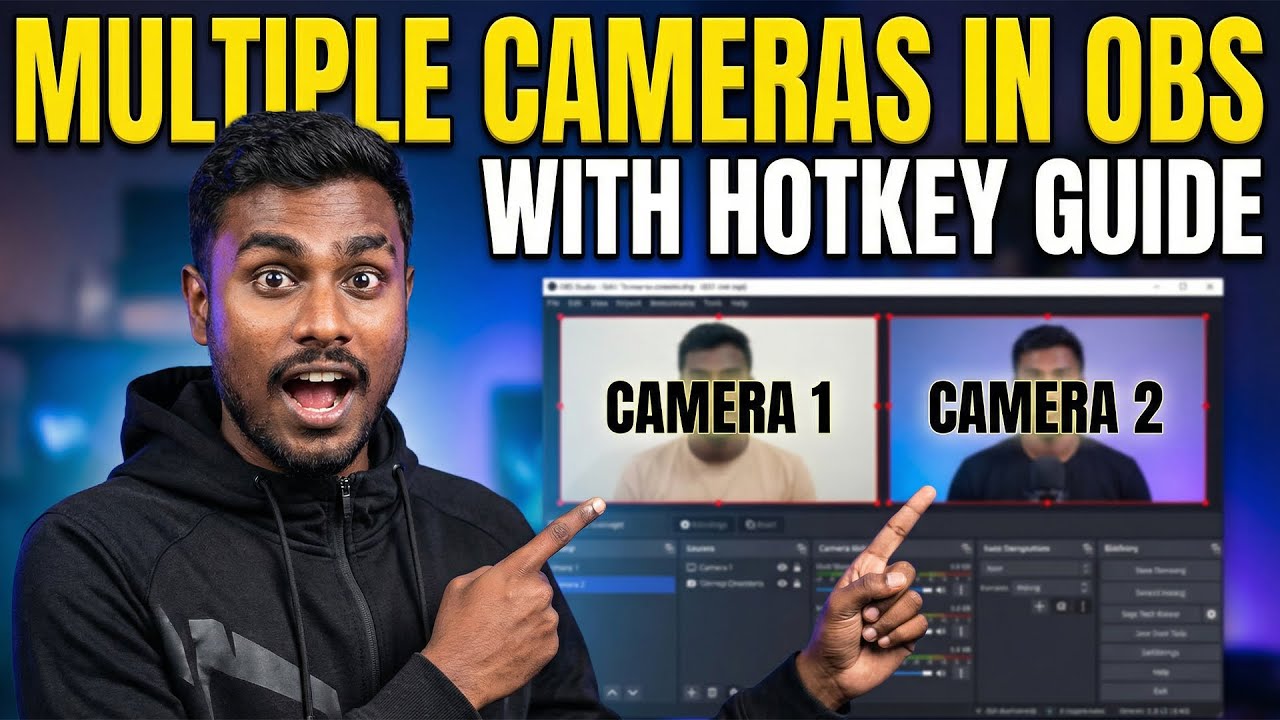
There's a moment in every streaming DJ's journey when a single locked-off camera starts to feel like a straitjacket. The mix is tight, the track selection is on point, but the video is one long, static wide shot of you behind the decks — and viewers quietly drift away. The fix most people jump to is a Blackmagic ATEM Mini or another hardware switcher. Here's the good news: you almost certainly don't need one.
Your phone is already a better camera than most webcams, and OBS Studio — which you're probably already using to broadcast — can switch between two camera feeds with a single key press. For the cost of a phone mount and an afternoon of setup, you can run a proper two-camera DJ stream that cuts between angles like a pro. This guide shows you exactly how, on a budget.
Why a Second Camera Is the Upgrade That Matters
A single wide shot gives viewers context — the booth, the lights, the vibe — but it can't hold attention for two hours. A second camera gives you a close-up: your hands on the decks, the fader moves, the cue button, the track-drop. Cutting between the two keeps the eye moving the same way television has done for decades.
The second benefit is resilience. If your wide shot is badly lit or the framing is off, you can cut to the close-up and fix the problem without ever going dark. Two cameras mean you're never stuck with one bad angle.
What You Actually Need (The Budget List)
You own most of this already. The phone in your pocket is the second camera — that's the whole trick.
- Main camera — a webcam (a Logitech C920 or similar) or another phone.
- Second camera — your phone. This is the free upgrade.
- A mount — a cheap phone tripod or clamp arm, around €15.
- OBS Studio — free and open source.
- (Optional) a bridge app — free or a few euros, depending on the method you pick.
Method 1 — Phone as a USB Webcam (DroidCam, Camo, Iriun)
The simplest method is to plug your phone into the computer and let a bridge app present it as a normal webcam. OBS then treats it exactly like any other camera — no plugins, no networking.
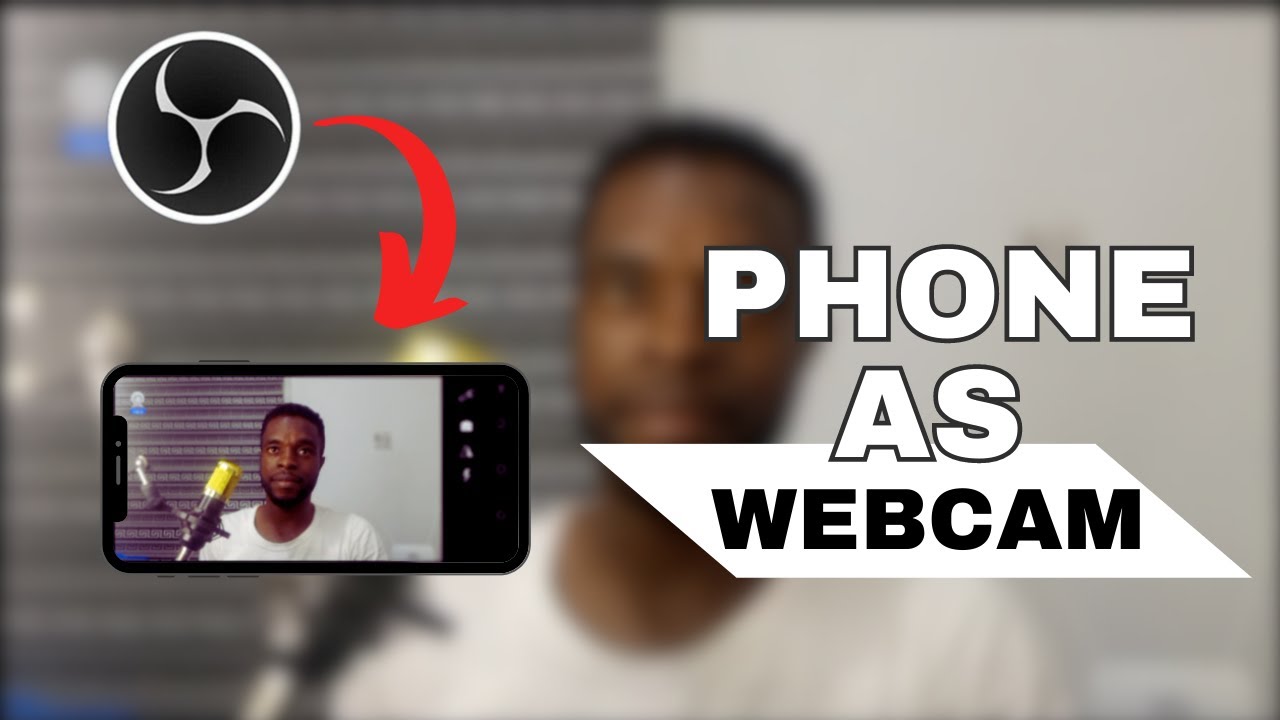
- Install the app on your phone and the companion driver on your computer. DroidCam (free/paid), Camo (freemium), Iriun (free/paid), and EpocCam all do the job.
- Connect over USB — it's the most reliable option. On Android you may be prompted to enable USB debugging.
- In OBS, add a
Video Capture Devicesource and pick the phone from the device list.
USB is the way to go if you want a rock-solid connection. Wi-Fi is more convenient but adds latency and can stutter on a busy network — and the last thing you want mid-mix is a choppy camera.
Method 2 — Phone Over Wi-Fi with NDI
NDI (Network Device Interface) turns your phone into a network camera. It's the broadcast-industry standard for moving video around a local network, and it's a great fit when you want zero cables or a camera positioned far from your desk.
- Install an NDI camera app on the phone — the NDI HX Camera app is free on iPhone and paid on Android; free alternatives exist.
- Install the obs-ndi plugin in OBS Studio.
- Add an
NDI Sourceand pick your phone from the list.
NDI works best on 5 GHz Wi-Fi or a wired ethernet adapter. For a bulletproof stream, USB remains the safer choice; NDI shines when cable-free setup matters more than absolute reliability.
Method 3 — Two Webcams, or a Cheap Capture Card
If you own a DSLR, mirrorless camera, or an old action cam, a cheap HDMI capture card — roughly €15–30 — turns it into a USB device OBS can read. This gives you the cleanest possible image, because a real camera sensor beats any webcam.
- Connect the camera's HDMI output into the capture card, then the card into USB on your computer.
- Add it in OBS as a
Video Capture Device. - Check your camera model first — many DSLRs have a 30-minute auto-shutdown or lack clean HDMI output.
Building the Scenes in OBS
Once both cameras show up in OBS, you have two ways to wire them up. The cleaner approach is one scene per angle — a "Wide" scene and a "Close" scene — then switch between the scenes. The alternative is a single scene with both sources stacked and their visibility toggled, but that gets fiddly fast.
If you're new to OBS entirely, start with our OBS Studio for DJs guide to get scenes and sources set up before adding a second camera.
Switching Without Hardware — Hotkeys and Studio Mode
This is where the "no switcher" magic happens. Assign a hotkey to each scene and you can cut between angles instantly — no mouse, no extra gear:
- Open
Settings → Hotkeys. - Find
Switch to scene, and assign one key to "Wide" (say,1) and another to "Close" (say,2). - While live, tap the keys to cut between angles.
Enable Studio Mode (in the Controls dock) and you get a preview/program split — you queue the next angle privately, then push it live when you're ready, exactly like a real switcher. If you want to take your hands off the keyboard entirely, OBS also ships an Automatic Scene Switcher (under Tools) that can switch based on audio level, window focus, or a timer.
Keep the Audio Simple
Cameras in OBS are video-only, so don't let them touch your sound. Route your mixer or audio interface into OBS as one audio source, and mute or disable any phone or webcam microphone. Your audio chain should be identical to a single-camera stream — the second camera only adds pixels, never extra audio inputs to manage.
Pro Tips — Framing, Exposure, and Cutting
- Match exposure and white balance between the two cameras. A warm close-up next to a cold wide shot is jarring.
- Wide plus close is the classic two-shot. Resist adding a third angle until you've mastered two.
- Hold a shot. Give each camera 20–30 seconds before you cut. Fast cutting reads as nervous, not dynamic.
- Lock the phone down on a mount — handheld wobble is the giveaway of an amateur stream.
- Light the close-up. A desk lamp angled at your hands makes the mixer close-up pop. More on framing and lighting in our camera & lighting setup guide.
Sources & Further Reading
- OBS Project — Smartphone Camera Guide — the official walkthrough for using a phone as a webcam in OBS Studio
- OBS Studio Documentation — the official reference for sources, scenes, hotkeys, and Studio Mode
- NDI — Network Device Interface — the official NDI site and tools for moving video over a local network
- Blackmagic Design — ATEM Mini — the hardware switcher to compare against, if you ever decide to go that route
- Camo by Reincubate — a freemium app for using your phone as a high-quality webcam
Ready to put your new two-camera setup to work? Grooveline is a free platform for DJs to broadcast — create your profile, book a slot, and go live.