You've got your decks wired, your camera framed, and your audio dialled in. Your DJ set sounds great. But when viewers land on your stream, what do they see?
In 2026, the shift from audio-only to video is the defining trend in DJ broadcasting. If you're setting up your first stream, start with our step-by-step guide to broadcasting a DJ set live — this article is about making that stream look professional with graphics.
This guide covers everything you need to design, build, and deploy professional-quality graphics for your DJ stream. From zero-cost tools to advanced CSS animations, you'll learn the same techniques that broadcast engineers use on major streaming platforms — adapted for a single DJ working from their studio.
What Are Lower Thirds and Overlays?
Before diving into tools and techniques, let's define the terms:
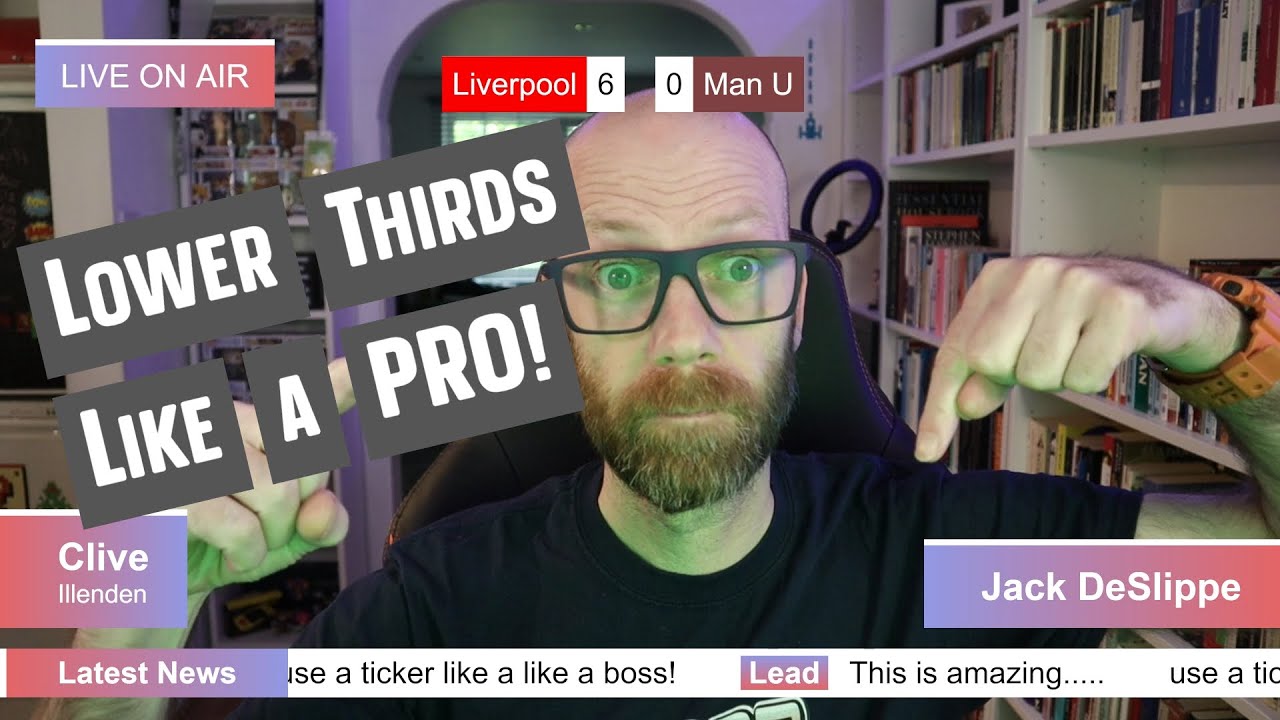
Lower thirds are text overlays that appear in the lower portion of the screen — typically showing the DJ's name, the current track, or a social handle. The name comes from television broadcasting, where these elements occupy the lower third of the frame so they don't obscure the main action.
Overlays are any graphic element placed on top of your video feed. This includes:
- Now-playing text showing current track and artist
- Webcam frames and borders
- Social media handles and follower counts
- Animated transitions between scenes
- Logo bugs and watermarks
- Donation alerts and subscriber notifications
- Frequency badges or "LIVE" indicators
Think of overlays as the visual equivalent of stage design at a club. The music is the main event, but the visuals tell the audience where they are and who's performing.
Free Tools for Creating DJ Stream Graphics
You don't need Adobe Creative Cloud to produce broadcast-quality graphics. These free tools cover everything from static overlays to animated sequences:
Canva
Canva's stream overlay templates are the easiest starting point for DJs with no design experience. It offers pre-built overlay layouts sized for 1920×1080 streams, with drag-and-drop editing. You can customize colours, fonts, and text, then export as transparent PNG for static overlays or MP4 for animated elements. The free tier includes thousands of templates and design elements — enough to build a complete stream package.
OBS Studio Browser Source
The most powerful free technique is using OBS Browser Source with local HTML files. You write HTML + CSS files that render as overlay elements in your OBS scene. Because they're web pages under the hood, you can use CSS animations, JavaScript, and even pull data from APIs — all without third-party software. This is the technique used by professional esports productions and major streaming events.
StreamElements / StreamSlayers
Platforms like StreamSlayers and StreamElements offer cloud-hosted overlay widgets. You configure them on their dashboard, get a URL, and add it as a Browser Source in OBS. These are ideal for interactive elements like chat on screen, follower alerts, and current track displays that update in real-time.
Smart Lower Thirds Plugin
The Smart Lower Thirds plugin for OBS (v2.6.0, updated January 2026) is a dedicated tool that acts like a TV broadcast playlist. You queue up lower thirds (DJ name, track info, upcoming sets) and trigger them with a hotkey — no scene switching, no browser source reloading. It's free, open-source, and built specifically for streamers who need quick, professional-looking text overlays.
Step-by-Step: Creating a Lower Third in OBS
Here's the practical workflow for adding a professional lower third to your DJ stream, using the Browser Source method:
Step 1: Create the HTML file
Create a local HTML file with your lower third design. Here's a minimal example that slides in from the left:
<!DOCTYPE html>
<html>
<head>
<style>
  @import url('https://fonts.googleapis.com/css2?family=Rajdhani:wght@500;600&display=swap');
  * { margin: 0; padding: 0; box-sizing: border-box; }
  body { background: transparent; overflow: hidden; }
  .lower-third {
    position: absolute; bottom: 40px; left: 40px;
    transform: translateX(-120%); /* hidden off-screen */
    animation: slideIn 0.5s ease forwards;
  }
  .name {
    font-family: 'Rajdhani', sans-serif; font-size: 28px;
    font-weight: 600; color: #00d4c8;
    background: rgba(5,5,8,0.85); padding: 6px 20px;
    border-left: 3px solid #00d4c8;
  }
  .track {
    font-family: 'Rajdhani', sans-serif; font-size: 20px;
    font-weight: 500; color: #e0e0e8;
    background: rgba(5,5,8,0.75); padding: 4px 20px;
    margin-top: 2px;
  }
  @keyframes slideIn {
    to { transform: translateX(0); }
  }
</style>
</head>
<body>
  <div class="lower-third">
    <div class="name">DJ SPINNER</div>
    <div class="track">Now Playing: Track Title — Artist</div>
  </div>
</body>
</html>
Step 2: Add as Browser Source in OBS
In OBS: Sources → + → Browser. Check "Local file" and point it to your HTML file. Set the width and height (1920×1080 for full-frame, or crop to the lower third area). The transparent background means it layers seamlessly over your video.
Step 3: Trigger with hotkeys
Assign the Browser Source to a scene or use the "Visibility" hotkey to toggle it on and off. When you want to show a track name, press your hotkey — the CSS animation slides it in. Press again to hide. This is the same workflow used by professional broadcast graphics operators.
For real-time track info from your DJ software, you can use JavaScript in the Browser Source to fetch data from a local web server (like Mixxx's Web API or Traktor's beat phase data via OSC) and update the text automatically.
Design Principles for DJ Stream Overlays
Technical execution is only half the battle. Good overlay design follows rules that have been proven over decades of television broadcasting:
- Safe zone: Keep all overlay content in the outer 15% of the frame. The center 70% should be clear for your DJ setup, decks, and camera feed. This is called "title safe" area in broadcast.
- One focus at a time: Don't show lower thirds, social handles, track info, and chat all at once. Layer them — lower third for a moment, then fade out, then show chat. Overcrowding the frame is the #1 amateur mistake.
- Consistent branding: Use the same font, colour palette, and border style across all your overlays. Your stream should feel like a single cohesive production, not a collection of random graphics.
- Opacity and shadows: All overlays need a dark background or drop shadow. Light text over a live video feed is unreadable without contrast. Use backgrounds with 70–85% opacity or text shadows with 3–4px blur.
- Motion matters: Static overlays feel amateur. Animate them — slide in, fade in, or scale up over 300–500ms. But keep animations subtle and purposeful. Flashy transitions distract from the music.
Building a Complete Overlay Package for Your DJ Stream
A professional DJ stream needs more than just a lower third. Here's a complete overlay package, from most to least essential:
1. Now-Playing Display
This is the most important overlay for DJ streams. Viewers need to know what track is playing. Whether you update it manually or pull from your DJ software via API, a now-playing overlay should show the track title and artist in a prominent but non-intrusive position — typically the bottom center or bottom left of the frame.
2. DJ Name / Logo Bug
A small persistent logo in the corner (top right, typically) that shows your DJ name or brand. This should be present throughout the entire stream. It doesn't need to be animated or flashy — just consistent branding that viewers associate with your show.
3. Social Handles
Your Instagram, SoundCloud, or Twitch handle should appear periodically. A common technique is to show it at the start, once during the middle, and at the end of your set. Use a lower third or a fade-in at the bottom right. Don't keep it on screen permanently — it clutters the frame.
4. Webcam Frame
If you run a multi-camera setup (common in 2026), a subtle frame around your webcam feed helps it sit visually in the scene. A 1–2px border in your accent colour, with a thin drop shadow, is enough. See our OBS Studio for DJs guide for scene composition techniques.
5. Set Timer or Countdown
If you're on a scheduled slot (like on Grooveline), showing a "LIVE" indicator or a set timer adds urgency and professionalism. It also helps viewers understand when your set ends, which improves retention — they know to stay until the transition.
CSS Animation: From Static to Broadcast-Grade
CSS keyframe animations are the secret weapon for stream overlays. Here are three essential animation patterns you can use immediately:
| Animation | When to Use | CSS Keyframe |
|---|---|---|
| Slide In | Lower thirds, track info reveals | slideIn { from transform:translateX(-120%) to translateX(0) } |
| Fade In/Out | Scene transitions, "back soon" screens | fadeIn { from opacity:0 to opacity:1 } |
| Scale Up | Alerts, new track announcements | scaleUp { from transform:scale(0.8) opacity:0 to transform:scale(1) opacity:1 } |
The key to professional animation is easing. Use cubic-bezier(0.16, 1, 0.3, 1) for snappy entrances and cubic-bezier(0.4, 0, 0.6, 1) for smooth exits. Avoid the default ease-in-out — it makes motion feel sluggish.
Going Further: Dynamic Overlays with DJ Software
The most impressive DJ streams have overlays that update automatically with the music. Here's how to connect your overlays to your DJ software:
- Mixxx: Built-in Web API serves track metadata, BPM, and deck status over HTTP. Your Browser Source HTML can
fetch()this data every few seconds and update the now-playing display. - VirtualDJ: VirtualDJ supports OSC (Open Sound Control) output. You can run a small Node.js server that listens for OSC messages and serves them to your OBS Browser Source.
- Serato/Traktor: Both support MIDI and OSC. Tools like Engine DJ and third-party plugins can export metadata to a local file that the Browser Source can read.
- DIY solution: Use a simple Python HTTP server that reads from your DJ software's track history log and serves JSON. OBS Browser Source fetches and renders it with JavaScript.
This level of integration turns your stream from a static camera feed into a dynamic broadcast that looks and feels like a professional radio or TV production.
FAQ
What's the easiest way to get started with overlays?
Start with Canva. Search for "stream overlay" templates, customize with your DJ name and colours, export as transparent PNG, and add as an Image Source in OBS. This takes 15 minutes and gives you a professional-looking stream immediately.
Can I use lower thirds without learning HTML and CSS?
Yes. The Smart Lower Thirds OBS plugin and StreamElements widgets require no coding. You configure them through a dashboard, copy a URL, and add it as a Browser Source. For DJs who want professional results without touching code, these are the best options.
How many overlays should I have on screen at once?
Two, maximum. One persistent element (DJ logo bug) and one dynamic element (lower third or now-playing). Adding more makes the frame look cluttered and distracts from the music and performance.
Will overlays affect my stream performance?
Static overlays (images, text sources) have zero performance impact. Browser Source overlays with CSS animations use minimal GPU resources — typically less than 1% of a modern graphics card. The bigger impact is your video encoding settings, not the overlays.
Can I show track info automatically on Grooveline?
Grooveline processes tracks on the player side, so track metadata is available through the platform's streaming player. For now, DJs manage their own overlays locally — but the platform's architecture makes it possible to integrate track data into a streaming overlay in the future.
Sources & Further Reading
- OBS Studio Knowledge Base — official OBS documentation for Browser Source setup, scene composition, and source management
- StreamSlayers — How to Add Free Lower Thirds to OBS — practical guide with ready-to-use templates for animated broadcast graphics
- Smart Lower Thirds Plugin v2.6.0 — free open-source OBS plugin for playlist-style lower third management
- MDN — Using CSS Animations — authoritative reference for CSS keyframe animation techniques used in Browser Source overlays
- Canva Stream Overlay Templates — free drag-and-drop overlay design tool with pre-built streaming templates
Ready to put this into practice? Grooveline is a free platform for DJs to broadcast — create your profile, book a slot, and go live with your new pro-look stream graphics.