There's a hard truth every streaming DJ learns eventually: nobody is going to watch your full two-hour set on a Tuesday afternoon. Attention in 2026 lives in 30-second bursts — a Reel here, a Short there, a TikTok that hooks in the first two seconds. The DJs who are actually growing aren't the ones with the technically best mix; they're the ones who turn their sets into short-form clips that keep showing up in feeds all week.
A single livestream is a goldmine of clips. A clean transition, a big drop, a moment where the chat loses its mind — each one is a piece of content that can pull people toward your full sets and your profile. This guide shows you how to capture those moments, shape them for the feed, and get them in front of people — using tools you mostly already have.
Why Short-Form Beats the Full Set
Short-form video is the only format where the algorithm reliably pushes you to people who don't already follow you. A full VOD gets buried the moment you stop streaming; a 30-second clip keeps circulating for days. For a DJ, that changes the entire growth math:
- Discovery. Reels, TikTok, and Shorts surface clips to cold audiences. Your full set can't do that.
- Volume. One set easily becomes five to fifteen clips — a week's worth of daily posting from a single stream.
- Funnel. A clip is a trailer. It sends people to your profile, your archive, and your next live broadcast.
This is the same audience-growth logic we break down in our complete guide to growing your DJ audience — clips are simply the highest-leverage format for it in 2026.
Method 1: Clip Live with the OBS Replay Buffer
The best moment to capture a clip is the moment it happens — not hours later when you're scrubbing through a recording. OBS Studio has a built-in feature for exactly this: the Replay Buffer. It keeps the last few minutes of your stream in memory, and a single hotkey saves that window to disk without you having to record the whole set.
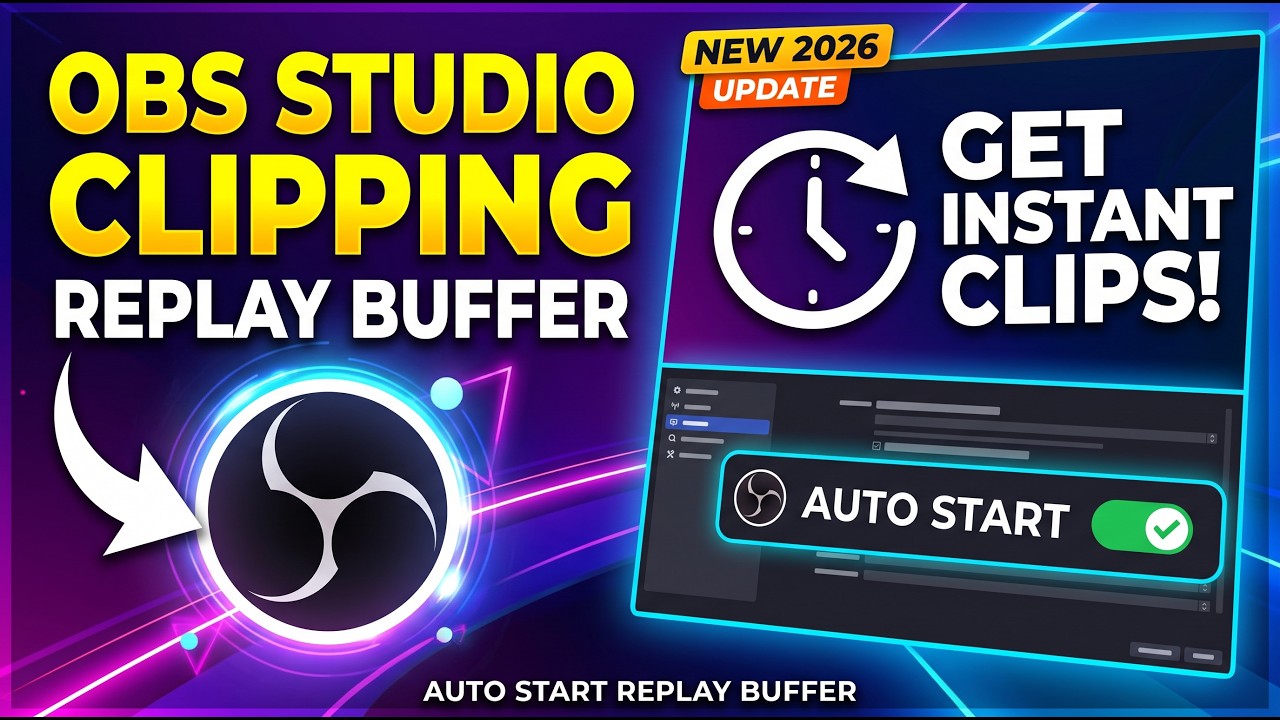
Here's how to set it up in OBS Studio:
- Open
Settings → Outputand enable Replay Buffer. Set the maximum replay time — 60 to 120 seconds is a good starting point. - Choose an output path for the saved files (they'll be
.mkvor.mp4depending on your settings). - Go to
Settings → Hotkeysand assign a key toSave Replay. - When a drop lands or the chat erupts, tap the hotkey. The last minute or two is saved as a standalone clip.
Keep the buffer time modest — the buffer lives in RAM, so an hour-long buffer eats memory for no reason. And note that the Replay Buffer runs alongside your live stream, so it works whether or not you're also recording the full set. If you're new to OBS entirely, start with our OBS Studio for DJs guide before diving into the buffer.
Method 2: Clip from the Recording After the Show
The Replay Buffer catches moments you're present for, but it's easy to miss a great transition when you're mid-mix. That's where a full recording comes in. Record the whole set, then cut it afterward with the benefit of hindsight.
- Record the set in OBS (or capture audio directly in your DJ software). Our guide to recording and archiving DJ sets covers the setup.
- Scrub through the waveform and mark the spikes — loud drops, big transitions, crowd or chat reactions, and anything visually interesting.
- Cut each moment into a 15–45 second clip in a free editor like CapCut, Clipchamp, or DaVinci Resolve.
This is the most precise method, and it's where you'll get your best, most intentional clips — you're choosing the moments instead of reacting to them.
Method 3: Let AI Find the Best Moments
If you don't want to scrub through hours of footage, AI clipping tools now do the heavy lifting. Point one at your VOD and it detects highlights — drops, loudness spikes, transitions, big visual changes — then auto-cuts vertical clips and even adds captions. Tools like OpusClip, Klap, and similar editors are built exactly for this.
The catch: AI picks moments by signal, not by taste. It'll catch the loudest drop, but it might miss the subtle transition that you know was the best part. Treat AI as a first pass — let it generate ten clips, then keep the three or four that actually represent you.
Make It Fit the Feed: Vertical, Captions, Hooks
Capturing the clip is half the job. Making it work on Reels, TikTok, and Shorts is the other half. Three things separate a clip that stops the scroll from one that gets skipped:
- Go vertical. Short-form feeds are 9:16. Crop your 16:9 stream to 1080×1920, keeping the action (your hands, the drop, the visual) centered. A vertical OBS setup gives you native 9:16 footage from the start if you'd rather not crop.
- Caption everything. The majority of short-form viewers watch with sound off. Auto-captions in CapCut or the platform's built-in caption tools are non-negotiable.
- Hook in the first two seconds. Open on the moment itself — the drop, the crowd, the transition — not a "hey guys welcome back."
What Actually Works on Reels, TikTok, and Shorts
DJ clips have a built-in advantage: the music is already there. You don't need a voiceover or a script — you need the right moment, framed well. The clips that perform consistently tend to share a few traits:
- A clear visual payoff. A visible hand move, a needle drop, a dramatic filter sweep — something the eye can follow without sound.
- Text that sets it up. One line of on-screen text — "the drop at 2:14" or "this transition took me a month to learn" — gives the clip a reason to exist.
- A soft CTA. End with "full set on my profile" or "live every Friday" rather than nothing. You're funneling, not begging.
Keep clips between 15 and 45 seconds. Short enough to loop-watch, long enough to actually hear a musical idea resolve.
A Simple Weekly Clip Workflow
You don't need a content studio to make this stick. Here's a rhythm that turns one weekly set into a steady stream of clips:
- Before the stream: enable the Replay Buffer and set your hotkey.
- During the stream: tap the hotkey whenever a moment lands. You'll finish with 3–6 raw clips already saved.
- After the stream: pull the best ones into CapCut, crop to 9:16, add captions and a hook line, and export.
- Through the week: post one clip a day across Reels, TikTok, and Shorts, linking back to your full sets.
The result: your one weekly broadcast becomes a week's worth of daily content — and every clip is a door back into your stream.
Sources & Further Reading
- OBS Studio — How to Set Up Instant Replay (Replay Buffer) — the official community walkthrough for enabling and hotkeying the Replay Buffer
- OBS Studio Documentation — the official reference for OBS output and replay buffer settings
- CapCut — free video editor with auto-captions and vertical (9:16) export for Reels, TikTok, and Shorts
- YouTube Shorts — Creator Guide — YouTube's official guidance on the Shorts format and best practices
- TikTok for Business — official resource on short-form video strategy and audience growth
Ready to put this into practice? Grooveline is a free platform for DJs to broadcast — create your profile, book a slot, and turn every set into clips that grow your audience.