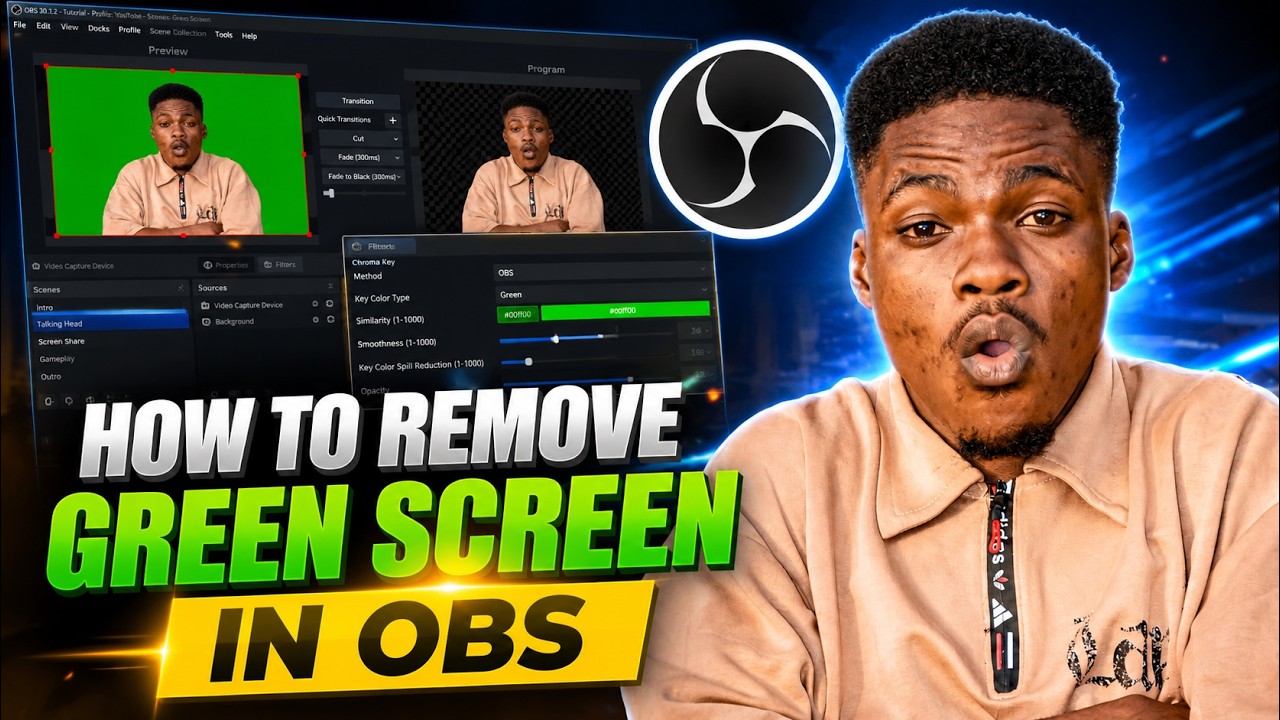
In 2026, a DJ stream lives or dies on its video. The audio has always been the point — the mix, the transitions, the track selection — but viewers are increasingly deciding whether to stay based on what the camera shows them. And what most cameras show is a bedroom wall, a pile of cables, and a desk that has never been tidied. A green screen fixes all of that in an afternoon.
Chroma key — the technical name for removing a green background and replacing it with something else — used to be a broadcast-studio trick. Now it's a $50 upgrade that turns your bedroom into a branded, professional-looking virtual studio. This guide covers the gear, the lighting, and the OBS setup, with the exact settings that get you a clean key on the first try.
Why a Green Screen Is the Highest-Value Upgrade
It's not just vanity. A green screen solves three concrete problems for streaming DJs:
- Space. Most DJs stream from a corner of a room, not a studio. A green screen lets you project a booth, a club visual, or a clean branded backdrop where there's really a wardrobe behind you.
- Consistency. Every stream looks the same — same background, same framing, same brand — which is how viewers learn to recognise you in a crowded feed.
- Focus. A clean background keeps the eye on you and the decks, not on whatever's happening behind you.
Pair it with decent lighting and a locked-off camera, and you've got a look that reads "professional broadcast" even from a €200 setup. If you haven't got your camera and lighting sorted yet, start there — a green screen can't save bad light.
What Chroma Key Actually Does
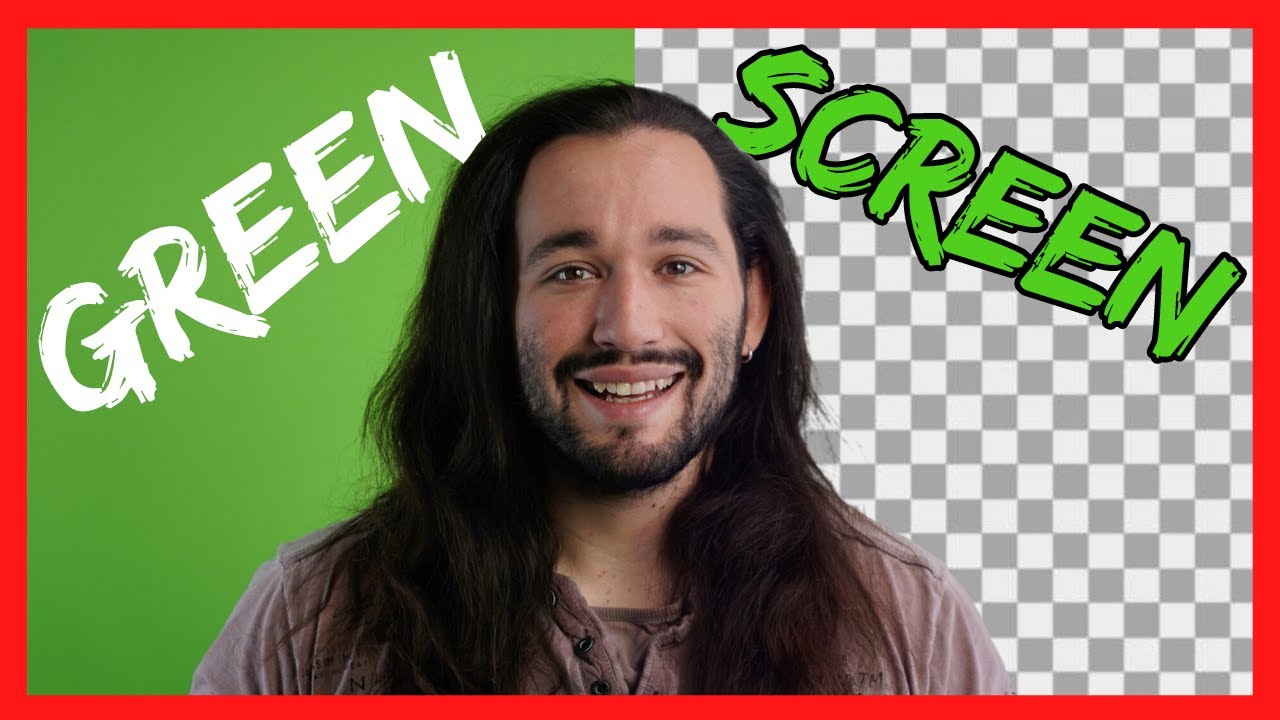
Chroma key works on one simple idea: your camera sees a flat, uniform colour in the background — usually green or blue — and the software makes every pixel close to that colour transparent. What's left is you, composited over whatever image, video, or animated loop you drop behind. Green is the default because camera sensors are most sensitive to it, which means less noise and a cleaner edge.
Everything about getting a good key is about making that background colour as flat and uniform as possible, and keeping it as far as possible from anything you're wearing. That's why lighting matters more than the screen itself.
The Gear List
You don't need much, and the screen is the only thing you might not already own.
- The screen. The Elgato Green Screen is the streamer standard — a pop-up chroma panel that packs flat when you're done. A cheap green fabric backdrop on a stand works fine too. If you have a wall you can commit to, chroma-green paint is the most permanent (and most reliable) option.
- Two lights. One for the screen, one for you. This is non-negotiable and covered below.
- A camera. Any 1080p webcam works. A phone or mirrorless camera gives you more control.
- OBS Studio. Free, and it has the chroma key filter built in.
Light the Screen and the DJ Separately
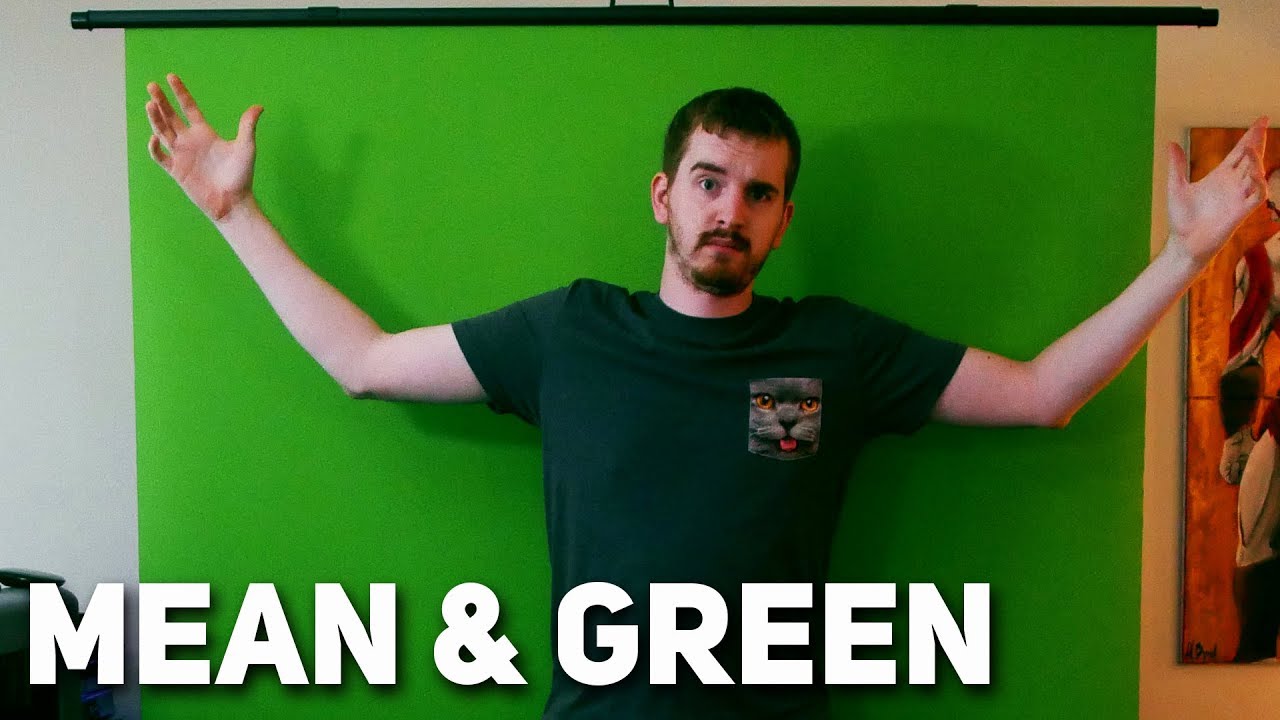
This is the step almost everyone skips, and it's the one that makes or breaks the key. Your screen needs to be lit evenly — no hot spots, no shadows — and it needs to be lit independently of you. If you light yourself and the screen with the same single lamp, you'll cast a shadow on the screen, and the chroma key will leave a grey halo around your head.
- Screen light. Two softboxes or LED panels, one on each side, angled at 45° toward the screen. The goal is a flat, consistent green with no brighter or darker patches.
- Key light on you. A separate light on your face and the decks, positioned so your shadow falls away from the screen.
- Distance. Stand at least 1–1.5 metres from the screen. This keeps your shadow off it and reduces green "spill" reflecting back onto your shoulders.
The most reliable way to judge this is by eye before you touch OBS: if the green looks uneven to you, the key will look uneven to your viewers.
Camera Settings for a Clean Key
A few camera choices have an outsized effect on how cleanly the key cuts:
- Shoot 1080p at 30 fps. Higher resolution gives the filter more detail to work with; 60 fps is unnecessary for a mostly-static DJ shot.
- Lock exposure and white balance. Auto-exposure will brighten and dim the green as you move, and the key will flicker. Set both manually and leave them.
- Keep motion blur low. Fast hand movements over the decks plus a cheap webcam's rolling shutter can smudge the edges. Good light helps here more than anything.
Setting Up the Chroma Key Filter in OBS
The actual filter takes two minutes. If you're new to OBS scenes and sources, our OBS Studio for DJs guide walks through the basics first.
- Add your camera as a
Video Capture Devicesource in a scene. - Right-click the source and choose
Filters. - Click the
+under Effect Filters and selectChroma Key. - Use the Key Color Type dropdown to pick
Green, or use the eyedropper to click a spot on your green screen in the preview. - Drag the sliders (below) until the background is gone and your edges are clean.
Then add your background: drop an image, a looping video, or a browser source behind the camera in the scene's source list. Whatever you place underneath shows through wherever the green used to be.
Fine-Tuning: Similarity, Smoothness, and Spill
The three sliders do the heavy lifting, and they're the difference between a clean cut and a jagged mess:
- Similarity controls how close a pixel has to be to the key colour to be removed. Start around 400 and raise it until the green disappears. Too high, and it starts eating your clothes and skin.
- Smoothness softens the edge of the cut. Start around 80. Too low and edges look jagged; too high and you get a fuzzy outline.
- Spill Reduction removes the green tint that reflects onto your hair and shoulders. Start around 100 and adjust until the green cast on your silhouette is gone.
If you can't find a setting that's clean, the problem is almost never the sliders — it's the lighting. Go back and even out the screen before you fight the filter.
Virtual Backgrounds and Branding
This is where a green screen stops being a neat trick and becomes part of your brand. The same way you'd design overlays and lower thirds for your stream, you should treat the background as a design asset, not an afterthought.
- Static brand backdrop — your logo, your colours, a clean dark studio look that matches your overlays.
- Animated loop — a subtle club visual or audio-reactive loop in the background gives the stream motion without distracting from the mix.
- Full "virtual booth" — composite yourself into a rendered DJ booth for a look that no physical room could give you.
Keep it consistent. A viewer should be able to glance at a thumbnail and know it's you because the background, the overlays, and the framing all belong to the same visual identity.
Common Mistakes That Ruin a Key
- Wearing green. Green shirt, green headphones, green hair — any of it vanishes into the key. Wear colours that don't appear in the background.
- Wrinkled or sagging fabric. Shadows in the folds read as grey patches the filter can't remove. Stretch the fabric tight and steam the creases out.
- Standing too close. You want a full metre of clearance or you'll get shadow and spill.
- Auto-exposure left on. This is the number-one cause of a flickering key.
- Forgetting the room lights. Ceiling lights cast shadows downward onto the screen. Kill them and rely on your two controlled lights instead.
Get the lighting right, lock your camera settings, and a green screen is genuinely set-and-forget. It's one of the few upgrades in streaming that keeps paying off every single time you go live.
Sources & Further Reading
- OBS Studio — Filters Guide — the official reference for the Chroma Key filter and its settings
- StudioBinder — Green Screen Lighting Setup — why the subject and screen must be lit separately, with diagrams
- PremiumBeat — The Fundamentals of Lighting a Green Screen — soft-light techniques for a flat, even key
- Elgato — Green Screen — the pop-up chroma panel most streamers use
- OBS Studio Documentation — the full reference for sources, scenes, and filters
Ready to put your new virtual studio to work? Grooveline is a free platform for DJs to broadcast — create your profile, book a slot, and go live.