You've dialled in your lighting, framed your camera angles, and perfected your audio. You're ready to go live. But here's the question that separates bedroom streamers from career DJs in 2026: are you streaming to one platform — or everywhere at once?
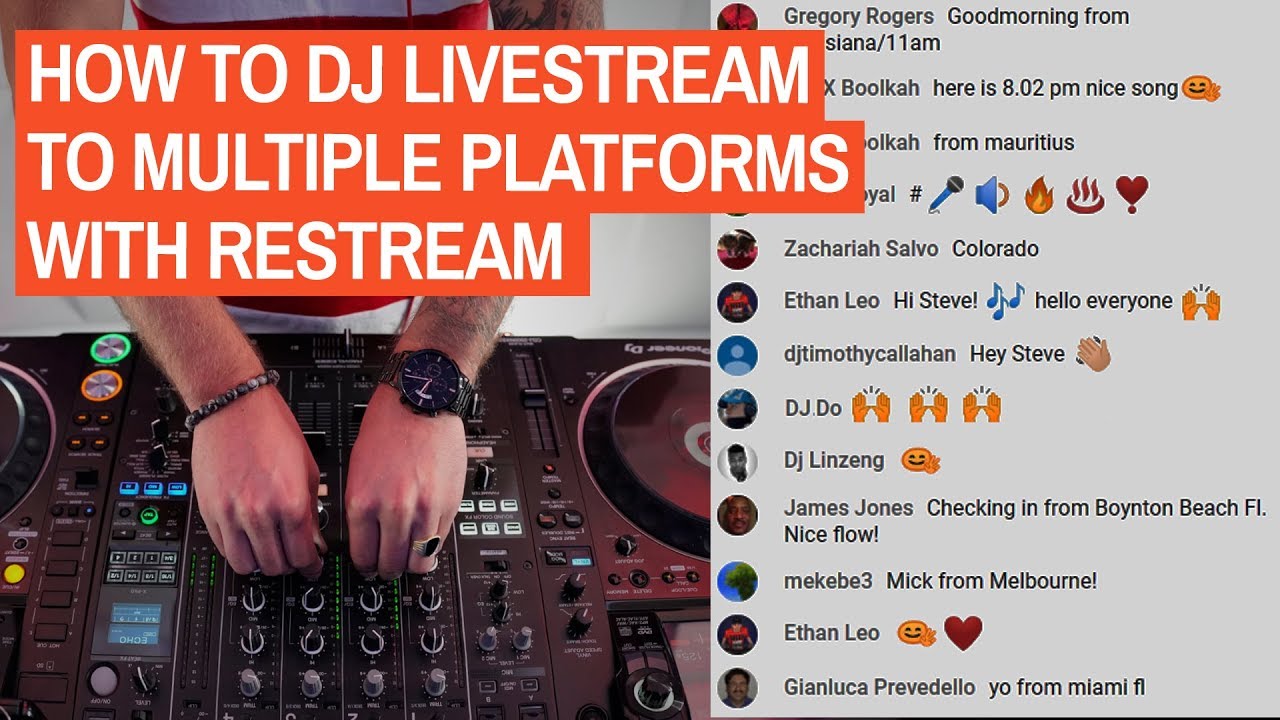
Multi-platform streaming (multistreaming, or simulcasting) lets you broadcast your DJ set to YouTube, Twitch, TikTok, Facebook, and other platforms simultaneously — from a single OBS encoder. No extra CPU, no multiple uploads, no choosing between audiences. This guide covers the tools, settings, and strategy you need to set it up today.
If you're just getting started with DJ streaming, check out our step-by-step guide to broadcasting a DJ set live first — this article assumes you have OBS and at least one camera set up.
Why Multistream? The 2026 Reality for DJs
In 2026, platform loyalty is dead. Audiences are fragmented across YouTube, Twitch, TikTok, Kick, Facebook, and niche platforms — and nobody switches platforms to find you. You go where they already are.
According to Streams Charts' 2026 multistreaming report, "audience accessibility" has overtaken "platform loyalty" as the primary metric for broadcaster success. Creators who stream to 3+ platforms see faster audience growth than platform-exclusive streamers, even accounting for fragmented engagement metrics. The math is simple: a DJ on YouTube-only might reach 30 viewers; the same DJ multistreaming to four platforms might reach 80 total — with the same production effort.
This is especially true for electronic music DJs. Unlike gaming streamers, who often build communities around a single platform's chat culture, DJ audiences are music-first. They care about the set, not the platform. If someone discovers your techno set on YouTube, they don't check whether you're also on Twitch — they just want to listen. Being everywhere increases the chances they find you.
Two Approaches: Cloud Service vs. Local Plugin
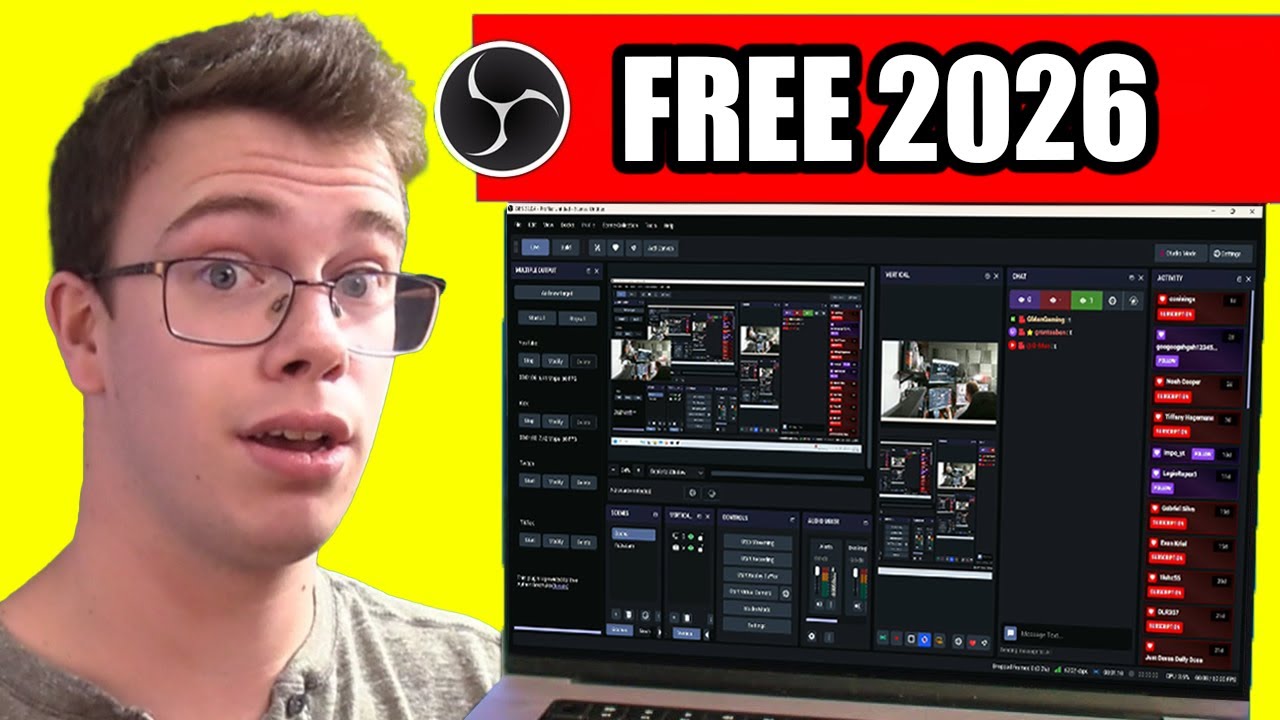
There are two ways to multistream as a DJ. Each has trade-offs in cost, latency, and control:
| Restream (Cloud) | OBS Multi-RTMP Plugin (Local) | |
|---|---|---|
| Cost | Free for 2 platforms; paid from $16/mo | Free, open-source |
| Setup time | 10 minutes | 15–20 minutes |
| Extra latency | ~1–3 seconds | None (direct RTMP) |
| CPU impact | Minimal (one stream out) | Depends on encoder config |
| Platform cap | 2 free / 5+ paid | Unlimited (CPU/bandwidth bound) |
| Best for | Beginners, stable internet, analytics | Power users, zero added latency, full control |
Option 1: Restream.io (Cloud-Based)
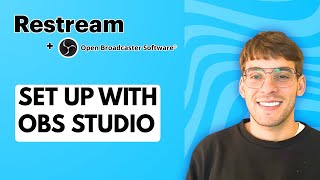
Restream is a cloud relay service. You send one RTMP stream to Restream's servers, and they duplicate it to all your connected platforms. This means your upload bandwidth stays at one stream's worth, and Restream handles the heavy lifting of maintaining multiple connections.
Setup (5 steps):
- Create a Restream account (free tier = 2 platforms, paid = 5+)
- In your Restream dashboard, click "Add Channel" and connect YouTube, Twitch, Facebook, TikTok, etc.
- Copy your Restream RTMP URL and stream key
- In OBS → Settings → Stream → Service: Restream.io, paste the key
- Click "Start Streaming" — Restream fans out to all channels automatically
Why DJs like Restream: It's dead simple. No plugin installation, no config file editing. The dashboard gives you combined chat from all platforms, stream health monitoring, and analytics across channels. For DJs who want to focus on music and not server administration, Restream removes the friction.
The catch: The free tier limits you to 2 platforms and adds Restream branding. The 1–3 seconds of extra latency (your stream hits Restream's relay before reaching viewers) is negligible for music — nobody notices a 3-second delay on a DJ set. But if you're doing interactive requests or live shoutouts across platforms, the chat delay is slightly mismatched.
Option 2: OBS Multiple RTMP Plugin (Local)
The Multiple RTMP Outputs Plugin (by SoraYuki) is the power-user alternative. It adds a dock to OBS where you configure separate RTMP destinations — each with its own stream key, encoder, and bitrate. Your computer sends streams directly to each platform, with zero cloud relay.
Setup (6 steps):
- Download the plugin from obsproject.com/forum/resources/multiple-rtmp-outputs-plugin.964/
- Install (Windows: installer .exe, Mac: .pkg, Linux: build from source)
- Restart OBS — a "Multiple RTMP" dock appears
- Click "+" to add a target: paste the RTMP URL + stream key from YouTube, Twitch, etc.
- Configure encoder: "Use shared encoder" reuses your main OBS encoder (zero extra CPU) or "Use standalone encoder" for per-platform bitrate control
- Click "Start" on each target or "Start All"
Why power users prefer this: Zero added latency. Your streams go directly from your computer to each platform — no middleman, no extra hops. Unlimited platforms. Full control over per-platform bitrate and encoder settings. And it's completely free.
The catch: Every extra stream target uses upload bandwidth. If you stream at 6 Mbps to one platform, streaming to three means your upload needs to handle ~18 Mbps (plus overhead). You need a solid internet connection — wired Ethernet is mandatory at this scale. The plugin also requires manual setup for each platform's RTMP credentials, and there's no unified chat or analytics dashboard.
Internet Bandwidth: The Real Bottleneck
Multistreaming lives and dies on your upload speed. Here's the math:
| Streams | Bitrate per stream | Total upload needed | Minimum connection |
|---|---|---|---|
| 2 platforms | 6 Mbps | ~13 Mbps | 20 Mbps upload |
| 3 platforms | 6 Mbps | ~20 Mbps | 30 Mbps upload |
| 4 platforms | 6 Mbps | ~26 Mbps | 40 Mbps upload |
| 2 platforms (720p) | 3.5 Mbps | ~8 Mbps | 15 Mbps upload |
Practical tip: Most home fiber connections in 2026 offer 50–100 Mbps upload — enough for 4+ platforms at 1080p. But if you're on cable or DSL, test your upload speed first at speedtest.net. For DJs on slower connections, dropping to 720p/30fps at 3.5 Mbps per stream gives you room for 2–3 platforms without buffering.
If you're using Restream, the math changes: you send one stream at your chosen bitrate, and Restream fans it out. This is the single biggest advantage of the cloud approach for DJs with limited upload bandwidth.
Platform Strategy: Where Should DJs Stream?
Not all platforms are equal for DJ content. Here's the landscape as of mid-2026:
YouTube Live — The Search Engine
YouTube is the best platform for discovery. DJ sets on YouTube get indexed by Google, surface in search results for months after the live stream, and build a permanent library of your work. Unlike Twitch, where VODs disappear after 7–14 days, your YouTube stream archive lives forever. For DJs building a long-term brand, YouTube is non-negotiable.
Twitch — The Community Hub
Twitch still dominates live interaction. The chat culture, raids, and subscription model create the strongest real-time community. However, Twitch's copyright enforcement (muted VODs, DMCA strikes) is a real headache for DJs playing commercial tracks. Many electronic music DJs use Twitch for the live show and rely on other platforms for the archive.
TikTok Live — The Growth Rocket
TikTok's algorithm is unmatched for reaching new audiences. A DJ stream that hits the For You Page can pull hundreds of viewers from zero followers. The catch: TikTok Live is vertical-only and designed for mobile viewing. You'll need a separate vertical scene in OBS (9:16 aspect ratio) if you're serious about TikTok. See our OBS Studio guide for vertical scene setup.
Facebook Live — The Legacy Reach
For DJs with an existing Facebook following, Facebook Live still delivers. The algorithm prioritises live video in the feed, and older audiences (30+) are more likely to discover streams on Facebook than on Twitch. It's not a growth platform, but it's a retention tool.
Grooveline — The DJ-Specific Platform
Grooveline is built specifically for DJs. Unlike general-purpose streaming platforms, it processes tracks on the player side, offers scheduled slots, DJ profiles, and a community of electronic music enthusiasts. It's not competing with Twitch for gaming audiences — it's a dedicated space where DJs find other DJs and electronic music fans. For DJs building a streaming presence, Grooveline acts as your home base while multistreaming to the big platforms acts as your discovery funnel.
Bitrate and Encoder Settings for Multi-Platform DJ Streams
A DJ stream has different encoding requirements than a gaming stream. There's less fast motion, which means you can use lower bitrates without visible quality loss — and every saved megabit matters when you're sending to multiple platforms.
Recommended settings for DJ video:
- Resolution: 1920×1080 at 30fps (not 60fps — DJ sets don't benefit from 60fps, and it doubles your bandwidth)
- Video bitrate: 4,000–6,000 Kbps (use the lower end for multi-platform, higher for single-platform)
- Encoder: NVIDIA NVENC (GPU) or Apple VT (Mac) — never x264 (CPU) for multi-platform streaming
- Audio bitrate: 320 Kbps (AAC) — music demands higher audio quality than gaming streams
- Keyframe interval: 2 seconds (standard for all platforms)
- Preset: P5 (NVENC) or "Quality" (Apple VT)
Per-platform bitrate adjustments: If you're using the OBS multi-RTMP plugin with standalone encoders, you can tune bitrates per platform. TikTok and Facebook benefit from lower video bitrates (2,500–3,500 Kbps) since they transcode heavily on their end. Save the full 6,000 Kbps for YouTube and Twitch, where your stream quality survives the ingest pipeline more faithfully.
Audio Routing for Multi-Platform DJ Streams
One stream, multiple platforms, one audio feed — right? Not quite. Different platforms handle audio differently, and you need your DJ mix to sound good everywhere:
- Twitch: Audio capped at 160 Kbps AAC. If your source is 320 Kbps, Twitch re-encodes it. Not a dealbreaker, but worth knowing.
- YouTube: Accepts up to 320 Kbps AAC and preserves quality well. The best-sounding platform for music streams.
- TikTok: Aggressive audio compression. Focus on a clean, well-mastered signal — TikTok's encoder will crush dynamics, so pre-master your mix for loudness.
- Facebook: Decent audio handling, but the auto-gain can mess with levels. Disable Facebook's "audio enhancement" in your Live Producer settings if available.
For DJs with a proper audio interface, the routing chain is: DJ mixer → audio interface → OBS audio input → stream encoder. If you're also using a microphone for voiceovers, route it through a separate OBS audio track and use the compression and monitoring techniques from our audio setup guide to keep levels balanced across platforms.
Copyright Reality Check for Multi-Platform DJs
Multistreaming amplifies both your reach and your copyright exposure. Every platform has its own Content ID or DMCA system, and a takedown on one platform doesn't automatically affect the others — but repeated violations can get your accounts banned everywhere.
The practical approach in 2026:
- YouTube: Content ID claims on your stream are common but usually just demonetise or mute the VOD — they rarely take down a live stream. Accept it and move on.
- Twitch: DMCA strikes are the real risk. Muted VODs are standard; repeated live takedowns can lead to bans. Many DJs accept the VOD muting and stream anyway — the live audience is the value.
- TikTok: Less aggressive on copyright for live streams in 2026 — the platform's focus on short-form video means live audio gets less scrutiny.
- Facebook: Similar to YouTube — automated claims, rarely live takedowns for DJ sets.
The smartest strategy: stream your DJ sets live across platforms for the real-time audience, accept that VODs may get muted, and use a dedicated platform like Grooveline for clean, uninterrupted archives of your sets.
FAQ
Does multistreaming hurt my channel growth on any single platform?
It can slightly reduce "platform loyalty" metrics (subscribers per platform, watch time concentration), but the total audience across all platforms grows faster. For DJs — where the content (music) is platform-agnostic — the trade-off favours multistreaming. Gaming streamers with platform-specific communities might benefit from exclusivity; music streamers almost always benefit from being everywhere.
Can my computer handle multistreaming while running DJ software?
If you're using GPU encoding (NVENC, Apple VT, or AMD AMF), the impact is minimal. The GPU encoder is a dedicated hardware chip that doesn't compete with CPU tasks. Most modern computers (2020+) can handle DJ software + OBS + multi-RTMP output without issue. If you're on older hardware, use Restream's cloud relay — it requires only one stream output from your machine.
What's the minimum internet speed for multistreaming?
For 2 platforms at 1080p: 20 Mbps upload. For 3+: 30 Mbps upload minimum. If you're below that, use Restream (one stream goes out) or drop to 720p. Always use wired Ethernet — Wi-Fi packet loss kills multi-platform streams.
Can I multistream from a Mac?
Yes. The OBS multi-RTMP plugin has a macOS build. Restream works on any platform that runs OBS. Mac users should use Apple VT hardware encoder for best performance.
Do I need separate stream keys for each platform?
Yes. Every platform generates its own RTMP URL and stream key. You'll find them in each platform's creator dashboard (YouTube Studio → Go Live, Twitch Dashboard → Settings → Stream, TikTok Live Center, Facebook Live Producer). With Restream, you only enter your OBS stream key once — Restream handles the per-platform credentials.
Sources & Further Reading
- OBS Multiple RTMP Outputs Plugin — official download and documentation for the free multi-RTMP OBS plugin
- Restream Multistreaming — cloud-based multistreaming service with unified chat, analytics, and platform integrations
- Streams Charts — Does Multistreaming Help or Hurt Growth in 2026? — data-driven analysis of multistreaming's impact on audience growth across platforms
- OBS Studio Knowledge Base — official documentation for OBS encoder settings, audio routing, and stream configuration
- PodcastVideos — Multi-Platform Live Streaming Strategy 2026 — strategic overview of simulcasting in the current live streaming landscape
Ready to go live everywhere at once? Grooveline is a free platform for DJs to broadcast — create your profile, book a slot, and start building your multi-platform audience today.