What is in the Booth
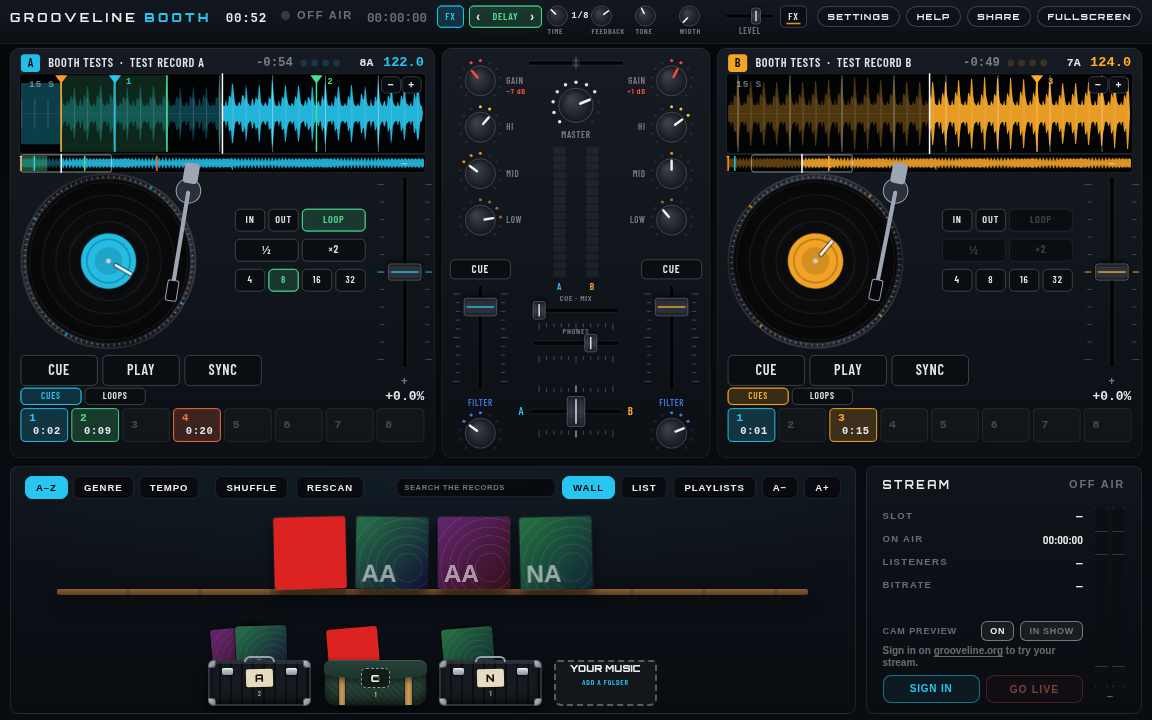
Everything a two-deck set needs
Two decks
Scrolling waveforms, CUE, PLAY and SYNC, a tempo fader, eight hot cues and saved loops per deck, and automatic loops of 4, 8, 16 and 32 beats.
Mixer and effects
Gain, a three-band EQ, a filter and a channel fader per deck, a crossfader, and tempo-synced effects: delay, reverb, flanger, phaser and filter.
Your own music
Open a folder and play it. Tags, covers, tempo and key are read on your computer; the files are never uploaded. Drag a record or a music file onto a deck. Playlists can be saved and loaded as .m3u8 files.
Keyboard and controllers
Play from the computer keyboard, or plug in a MIDI controller and teach the Booth its knobs and buttons. Nearly every control can be assigned, including browsing your library and loading records, and a list shows what is still unassigned. The setup can be saved as a file.
Headphone cue
Pre-listen the next record with a splitter cable, a four-output sound card, or a second sound device (Chrome and Edge).
On the radio
Sound check on a private test stream, then GO LIVE when your booked slot starts. A camera picture can go out with the show, and what you play shows on the site.
Open it
Play now, go live when you have a slot
- Open the Booth with the button above. A click anywhere starts the sound (browsers wait for one).
- Open a music folder in the library and put a record on each deck. The manual walks through every control.
- Book a slot on grooveline.org/broadcast when you want to go on the radio. The Booth uses the same sign-in as the site.
- Sound check, then GO LIVE. SOUND CHECK sends your mix to a private test stream that nobody hears. GO LIVE works from the moment your slot starts.
Download
Desktop apps are coming
macOS
Apple Silicon and Intel.
Coming soonWindows
For Windows PCs.
Coming soonLinux
For desktop Linux.
Coming soonUntil the apps arrive, the browser version is the whole Booth. A desktop app is meant to work more closely with your sound card and MIDI controller; the decks, the mixer and going live stay the same.
Look closer
Settings, keys and controllers
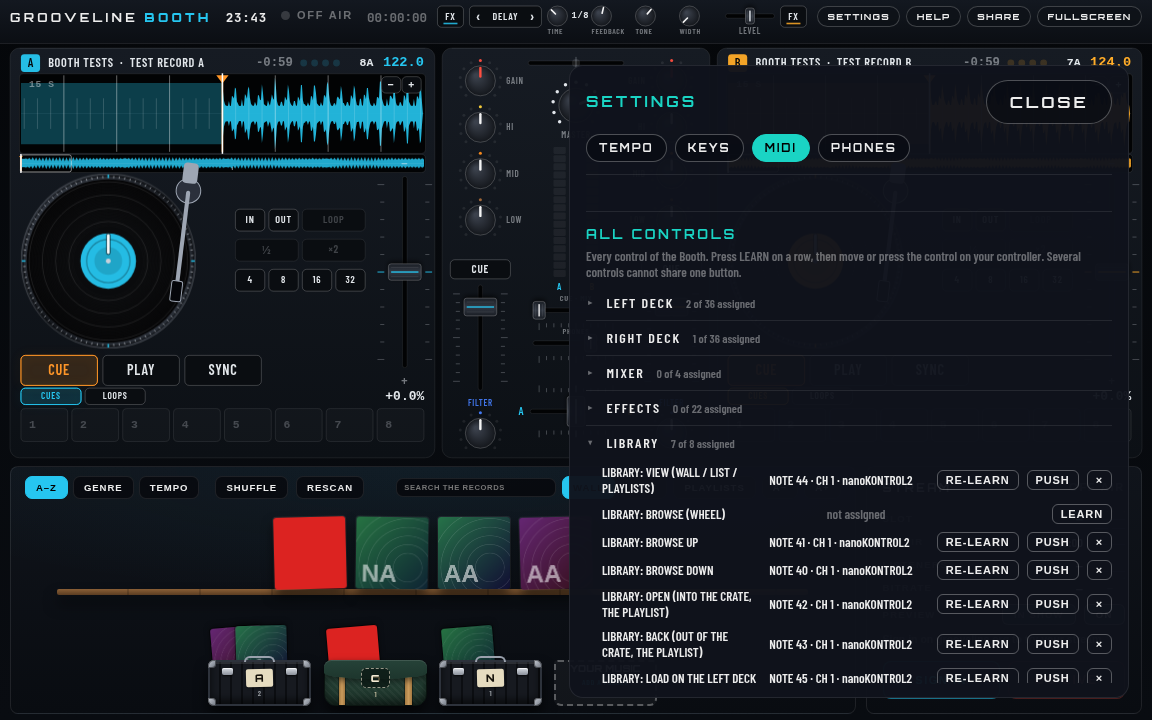
Questions about a control, the headphones, MIDI, the camera or going live? It is all in the Grooveline Booth manual, and the Booth's own HELP button opens it.