Grooveline Booth manual
Two decks, a mixer, effects and your own music in the browser. This page explains every part of the Booth, from the first record to going live on the radio.
Open the Booth About the Booth
Getting started
Open grooveline.org/booth. There is nothing to install. The first click or key press starts the sound: until then the Booth shows CLICK ANYWHERE TO START THE SOUND, because browsers do not let a page make sound before that.
What you need
- A computer with Chrome or Edge. The Booth is made for them. Other browsers work with limits, listed below.
- Music files on that computer: mp3, flac, m4a, aac, wav, aiff, ogg or opus.
- Headphones are optional but you will want them for cueing (see Headphones).
- To go on the radio: a Grooveline account and a booked slot (grooveline.org/broadcast).
What changes in another browser
- Remembering your music folder needs Chrome, Edge or another browser with folder access. Without it you choose the folder again on every visit and the Booth says so: This browser does not keep your library between visits.
- MIDI controllers work in Chrome, Edge, Firefox and Opera, not in Safari.
- A second sound device for the headphones, and choosing the speaker output, work in Chrome and Edge on a computer.
- The camera needs the page to be on https (it is, on grooveline.org).
The screen
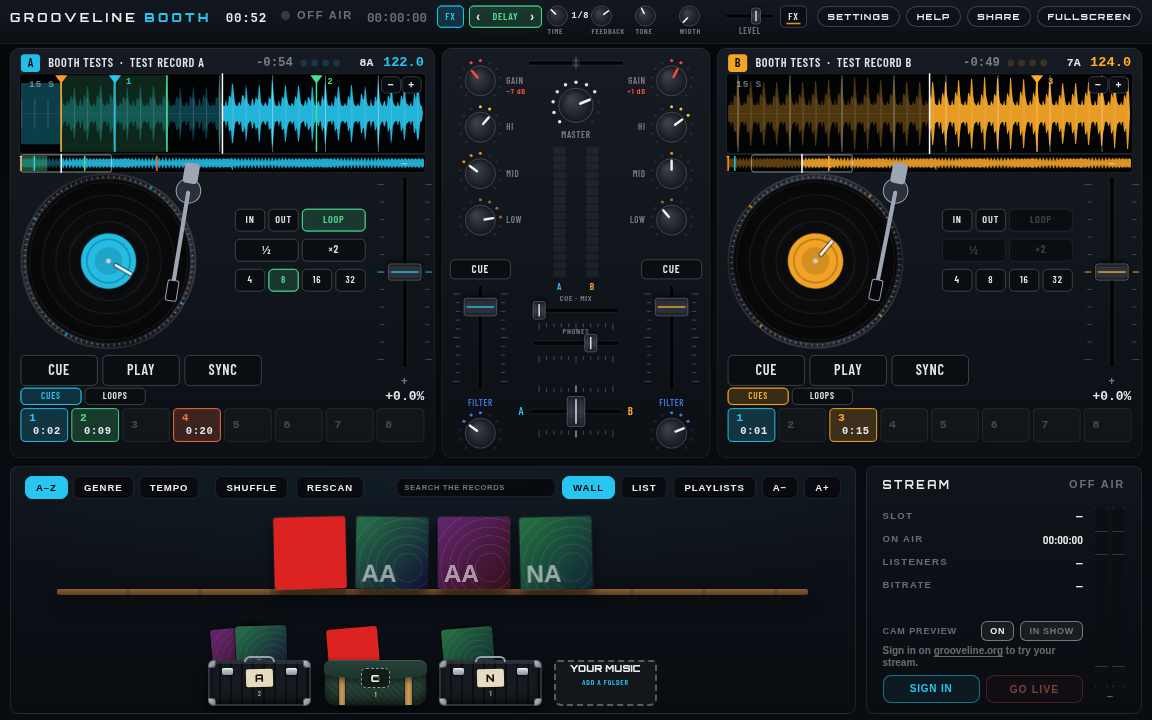
- Top bar. The clock, whether you are on air (OFF AIR, or ON AIR with the time you have been on), the effects, and the buttons SETTINGS HELP SHARE FULLSCREEN. When the window is narrow the bar drops its words, one by one, so the effects keep their room: first the name, then the words on the buttons (the pictures stay), then the clock.
- Decks. Left is deck A (cyan), right is deck B (amber).
- Mixer. In the middle: gain, EQ, faders, the master meter, the headphone controls and the crossfader.
- Library. Bottom left: your music, as a wall of covers, a list or your playlists.
- Stream panel. Bottom right: your slot, the time on air, the camera preview, SOUND CHECK and GO LIVE, with the master level meter running down its right edge.
HELP opens this manual in a new tab. The Booth keeps running.
SHARE gives you the link to the Booth to pass on: copy it, use your device's share sheet, or pick one of a few networks.
Your music
Open a folder
In the library press OPEN A MUSIC FOLDER (CHOOSE A FOLDER in a browser without folder access) and pick the folder with your music. The Booth reads the file names, tags, cover pictures, length, tempo and key. The files stay on your computer: they are read there and never sent anywhere.
The first read of a big folder takes a while. The panel shows how far it is and has a STOP button. You can play while it works.
Add more folders with ADD A FOLDER. Each folder shows as a small label with its number of tracks and three buttons:
- SCAN looks for new, changed and removed files in that folder. RESCAN does it for all of them.
- RECONNECT appears when the browser has forgotten that it may read the folder (this happens now and then). Press it and allow the read again. A record you drag or load from a controller needs this too: the browser only asks with a click, so the note over the decks tells you to press RECONNECT.
- REMOVE takes the folder out of the library. Your files are not touched.
Find and load a record
- WALL shows covers on a shelf and in crates. A–Z, GENRE and TEMPO choose how the crates are made, and SHUFFLE puts another handful of records on the shelf.
- LIST is one line per record, with search and sorting. Search takes artist, title, key or tempo.
- PLAYLISTS is described below.
- A− and A+ make the library's text smaller or bigger. The Booth remembers it.
- Click a record and a small box asks which deck. Pick the left (A) or the right (B). The heart marks a favourite.
- Or drag it. Pick up a cover on the wall, the front record of an open crate, a line of the list or a record of a playlist and let go over a deck. The deck gets an outline in its colour (cyan on the left, amber on the right) while you hold it over it. Over a deck that is playing the outline turns red and says to stop it first.
- Files from your computer. Drag music files from the file manager onto a deck. The first one loads at once. Files the library already has load as that very record, with its beat grid, cues and loops. New ones join a Dropped folder in the library for this visit only: they are gone after you close the Booth, so add their folder if you want to keep them. Anything that is not music is refused with a note, and the page never opens a file you miss the deck with.
- From a controller: see Browsing the library from a controller.
- A deck that is playing does not take a new record: the Booth tells you to stop it first, so a record is never pulled from under the needle.
Playlists
In PLAYLISTS you make playlists, fill them, save them as .m3u8 files and open such files again. From the box that asks for a deck you can also add the record to a playlist. Only your own music can be added to a playlist. Playlists are kept in this browser.
The decks
Each deck shows the record's name, the time left, its key and its tempo (BPM), a big scrolling waveform and, under it, a small overview of the whole record.
| Control | What it does |
|---|---|
| PLAY | Starts and stops the record. |
| CUE | Stopped: it marks the spot, plays while you hold it, then returns to the mark. Playing: it stops at the mark. Press PLAY while holding CUE and the record keeps playing when you let go. |
| SYNC | Copies the other deck's tempo, then leans on the record until the beats line up. If the tempo is further away than the fader's range reaches, SYNC goes as far as the range allows. Touching the tempo fader hands the deck back to you; pressing SYNC again also releases it. |
| Tempo fader | Changes the speed, shown as a percentage under the fader. Up is slower, as on a turntable. The range is set in SETTINGS. |
| The record | Grab the record itself (inside the dotted rim) to scratch it. |
| The dotted rim | Nudge. Turn the rim a little forward to speed the record up for a moment, or back to hold it back, to bring two records back in time. When you let go the record returns to its own tempo. See Nudge below. |
| Overview strip | Touch it: the needle lifts and drops where you let go. |
| Big waveform | Drag it like a record to move through the track. The − and + at its corner zoom in and out. |
Nudge: lining up two records by hand
This is how most DJs keep two records together, besides the tempo fader. First match the tempos with the tempo fader (or press SYNC and let the Booth do it). When the tempos are equal but the kicks are not on top of each other, correct with a nudge: turn the dotted rim of the platter a little forward to speed that record up for a moment, or back to hold it back. As soon as you let go, the record goes back to its own tempo, so the rim only corrects: it never changes the tempo you set. The harder you push, the more it bends, up to 8 %.
- On the screen: drag the dotted rim, on the outside of the record. (Grabbing the record itself scratches it.)
- On the keyboard: Q and W for the left deck, U and I for the right: Q and U hold the record back, W and I push it on, for as long as you hold the key. On a stopped record the same keys move through it, to find a spot.
- On a MIDI controller: a jog wheel or the nudge buttons. In LEARN click the record on the screen and choose JOG WHEEL, NUDGE BACK BUTTON or NUDGE FORWARD BUTTON, then move that control on your controller.
- See it: the thin line at the top of the mixer shows how far apart the beats of the two records are. Its dot is green in the middle when the kicks fall together and moves away from the middle when they drift. Nudge the record that is behind, or hold back the one that is ahead, until the dot is back in the middle.
With SYNC on, the Booth pulls the beats into line itself and the nudge does nothing on a playing record. Press SYNC again, or touch the tempo fader, to take over by hand.
Hot cues and loops
Under each deck are eight pads with two modes, CUES and LOOPS.
- In CUES an empty pad sets a hot cue at the current spot. A used pad jumps to it. The pad shows its time.
- In LOOPS an empty pad saves the loop you have set (with IN and OUT or an automatic loop). A used pad brings that loop back and starts it.
- To clear a pad hold Shift or Alt while you click it, or use the right mouse button.
Next to the platter: IN and OUT set the ends of a loop, LOOP switches it on and off, ½ and ×2 halve and double it, and 4 8 16 32 start an automatic loop of that many beats.
The mixer
| Control | What it does |
|---|---|
| GAIN | The level of the record coming in, per deck. Set it first so both decks have a similar level. |
| HI, MID, LOW | The three-band EQ of each deck. The middle is flat. |
| FILTER | One knob under each channel. The middle is off; one side cuts the highs, the other the lows. |
| Channel fader | The level of that deck in the mix. |
| Crossfader | Blends between deck A on the left and deck B on the right. |
| MASTER | The level of the room: what the radio gets. |
| The master meter | The master level, left and right, in the tall column at the right edge of the stream panel. A thin line holds the highest peak with its number in dB, and the CLIP light stays on for a moment when the sound reaches the top. Keep it below the top: a clipped sound is clipped on the radio too. |
| CUE (per channel) | Sends that deck to your headphones. |
| CUE · MIX | Blends between the cue and the room in your headphones. |
| PHONES | The level of your headphones. |
What goes to the radio is the room, never the headphone cue.
Effects
The effects sit in the top bar, between the clock and the buttons.
- The two FX buttons, one at each end, send deck A or deck B through the effect.
- The arrows around the name choose the effect: DELAY, REVERB, FLANGER, PHASER, FILTER, FLG+FLT and DLY+FLT.
- Four small knobs shape the effect. They change with the effect, and the first one is tied to the tempo: the number beside it (1/4, 1/8, 1/16 or 1/32) is the note value of the beat.
- LEVEL sets how much of the effect you hear.
Double-tap a knob to bring it back to where the effect rests.
Headphones
Open SETTINGS and then PHONES. Choose how your headphones are fed:
| Mode | What it is |
|---|---|
| OFF | The room in stereo. No headphone feed. |
| SPLIT L/R | One stereo output and a splitter cable: the room in the left ear, the next record in the right. |
| SOUND CARD | A sound card with four outputs: the room on 1–2, the headphones on 3–4. It shows only when such a card is the output. On Linux the card needs a 4.0 or pro-audio profile. |
| TWO DEVICES | The room on one sound device and the headphones on another (a USB headphone adapter, a second card). The headphones can run a little behind the speakers, so there is a HEADPHONES TIMING slider: turn CUE · MIX to ROOM, play a record, and move the slider until the headphones and the speakers sound as one. Chrome and Edge only. |
In Chrome and Edge you can also choose the ROOM (SPEAKERS) and HEADPHONES devices there. If the list shows no names, press SHOW MY SOUND DEVICES: the browser asks for the microphone only to show the names, it is switched off at once and nothing is recorded.
In every mode the radio gets the room only. The cue never goes out.
Keyboard and MIDI
Press ? or open SETTINGS → KEYS to see the keys in the Booth itself. The keys sit in the same place on any keyboard layout, and hold Shift for small steps.
Left deck (A)
Right deck (B)
Effects and crossfader
MIDI controllers
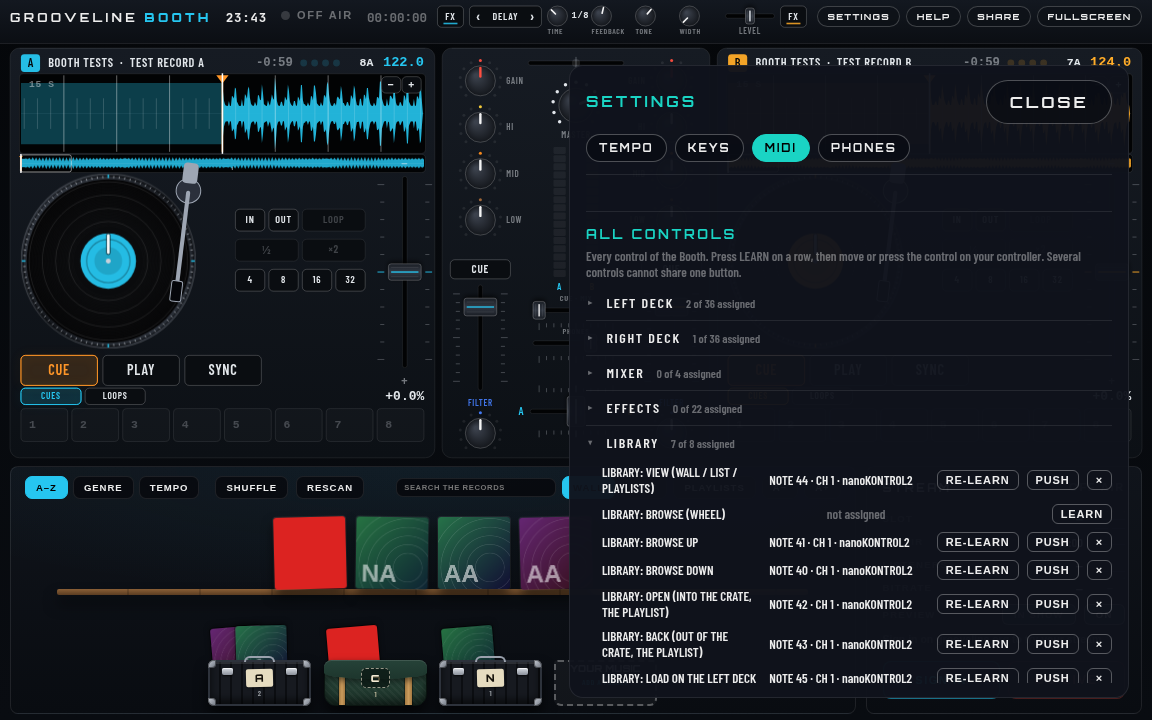
- Plug the controller in, open SETTINGS → MIDI and press CONNECT MIDI. The browser asks once.
- The easy way: the list. Under ALL CONTROLS every control of the Booth is listed in groups (left deck, right deck, mixer, effects, library, stream and page). Each group says how many of its controls are assigned, so you see at a glance what is not. Press LEARN on a row, then move or press the knob, fader or button on the controller. That is all. RE-LEARN changes it, × takes it off, and a button has a PUSH / TOGGLE switch.
- The other way: press LEARN at the top, click a control on the decks (or the little + and − over a waveform), then move the matching control on the controller. Press DONE when finished.
- Push buttons act when pressed. A latching button (one that stays lit) needs its mode set to TOGGLE.
- SAVE CONFIG writes everything learned to a small file (
headliner-midi-config.json) in your downloads folder. IMPORT CONFIG loads such a file on another computer or from a friend with the same controller. If the controller shows up under another name there, use the USE FOR button.
Safari has no MIDI. Chrome, Edge, Firefox and Opera do.
Browsing the library from a controller
You can pick and load records without touching the mouse. Assign these in the LIBRARY group of the list. A cursor (an orange outline) shows where you are in the view that is on screen.
- BROWSE (WHEEL): a rotary encoder or jog wheel. BROWSE UP and BROWSE DOWN: two buttons, for a controller with no encoder. The first move only shows the cursor.
- VIEW goes round WALL, LIST and PLAYLISTS.
- On the wall the cursor goes along the crates. OPEN opens the crate and the wheel flips through its records; BACK closes it.
- In the list the cursor goes down the lines.
- In playlists the cursor goes through the playlists; OPEN goes into its records and BACK comes out.
- LOAD ON THE LEFT DECK and LOAD ON THE RIGHT DECK load the record under the cursor. A deck that is playing refuses it, as with the mouse. Using the mouse in the library takes the cursor away.
Other buttons from a controller
In STREAM AND PAGE: SOUND CHECK, GO LIVE / END SHOW, SETTINGS, SHARE, CAMERA ON / OFF and CAMERA IN SHOW. GO LIVE and END SHOW have to be pressed twice within four seconds: the first press only says so in the note at the top. A pad touched by accident must not put you on the radio or take you off it. In the decks' groups there is also a WAVEFORM ZOOM (WHEEL) for an encoder; one turn is one zoom level, however fast.
What a controller cannot do
The browser only allows a few things from a click or a key on the keyboard, never from MIDI, so they are not in the list: FULLSCREEN, HELP (it opens the manual in a new tab), the copy button inside SHARE (SHARE itself can be opened) and SIGN IN (it opens the site's sign-in). The list says so at its end.
Settings
SETTINGS has four tabs:
- TEMPO: how far the tempo fader goes either side of the record's own tempo: ±8, 12, 16, 25, 35 or 50 %. 8 % is a classic turntable. A very fast record or a big tempo jump needs more; the wider it is, the coarser the fine touch becomes.
- KEYS: the keyboard, see above.
- MIDI: the controllers and the list of every control, see above.
- PHONES: the headphones, see above.
Sound check and going live
Going live needs a Grooveline account and a slot booked on grooveline.org/broadcast. The Booth uses the site's sign-in, which is why it lives on the same address as the site.
1. Sign in
In the stream panel press SIGN IN. It opens grooveline.org/broadcast in a new tab. Sign in there and come back; the Booth notices by itself. The address grooveline.org in the panel's note is a link too: it opens the same page. If your sign-in runs out, the panel says Your sign-in has run out: sign in again.
2. Sound check
SOUND CHECK sends your master to a private test stream. Nobody hears it. Use it to check your levels and your connection, any time you are signed in, and especially in the minutes before your slot. Start a record first: with the sound not running the panel says The audio is not running yet: start a record first. Press STOP CHECK to finish.
3. Go live
The panel's SLOT line shows your next booked slot and how long until it starts. GO LIVE works from the moment your slot starts, not before. In the 15 minutes before, use the sound check. At the start:
- Press GO LIVE. The chip says CONNECTING, then SENDING while it waits for the radio to list you.
- When the radio lists you, the chip and the top bar say ON AIR and the timer runs. The radio's own music hands over to you.
- Press END SHOW to stop. When your slot ends, the audio stops by itself and the radio goes back to its own music.
If the connection drops, the panel says RECONNECTING and tries again. What you are playing (artist and title of the deck the room hears) is shown on the site's player while you are on air.
| The panel says | It means |
|---|---|
| No slot booked. Book one on grooveline.org/broadcast. | You have no upcoming slot. Book one: the address in the note is a link, and it opens grooveline.org/broadcast in a new tab. |
| GO LIVE opens when your slot starts, in … | Your slot is less than 15 minutes away. Sound check now; GO LIVE opens at the start. |
| Your slot is running. | GO LIVE is ready. |
| Your slot has ended. | The show stopped at the slot's end. The radio is back to its own music. |
| Could not reach grooveline.org. | No connection. Check your network; the Booth keeps what it knew and tries again. |
Camera
The stream panel has a CAM PREVIEW row: the label, then ON / OFF, then IN SHOW. It shows what your camera sees, in the Booth only, and sends nothing by itself.
- ON / OFF switches the camera. If you have more than one, a list lets you choose.
- Click the picture to see it big. It opens over the right side of the library, next to the stream panel, as tall as the library and in the shape of your camera's picture. Use it to check focus, sharpness and framing; it is only a temporary window. Click it again, press Esc or switch the camera OFF to close it. Closing it does not switch the camera off, and, like the small picture, it is shown only in the Booth.
- When the window is small (you zoomed the browser in, or the window is about 540 px tall or less) the stream panel keeps what matters: the facts shed rows (SLOT stays longest), and below about 540 px there is no room for the picture, so the row says picture: no room (in a narrow panel the label shortens from CAM PREVIEW to PREVIEW, and the message to the plain label). Zoom back out and everything returns.
- IN SHOW decides whether the picture goes out with your show. It is off by default, and the Booth remembers your choice in this browser. A show that starts with it off is audio only.
- The camera never opens the microphone. Only the picture is sent; the sound is the Booth's master.
- While the picture is on air, ON/OFF, the camera list and IN SHOW are locked: changing them would end the show's video. End the show or the sound check first.
With IN SHOW on, the camera has to come on before the show starts. If it cannot, the show does not start and the panel tells you why.
Troubleshooting
There is no sound
- Click anywhere on the page or press a key. Browsers start the sound only after that. The Booth says CLICK ANYWHERE TO START THE SOUND until then.
- Check that a record is loaded and PLAY is on, the channel fader and MASTER are up, and the crossfader is not all the way to the other deck.
- Check the browser tab is not muted and your computer's output is the one you expect. In Chrome and Edge, SETTINGS → PHONES → ROOM (SPEAKERS) shows the device the Booth plays to.
The library is empty after I come back
Your browser does not keep folders between visits (the Booth says so under the library). Use Chrome or Edge, or choose the folder again each time. If the folder shows RECONNECT, press it.
Some files do not show up
The Booth reads mp3, flac, m4a, aac, mp4, wav, aif, aiff, ogg and opus. Press SCAN on the folder after you add files to it.
The camera does not start
- Camera blocked: allow the camera for this page. The browser has been told not to give this page the camera. Use the padlock or camera icon in the address bar to allow it, then reload the page. In Chrome you can also open the three-dot menu, then Settings, Privacy and security, Site settings, Camera, and under “Not allowed to use your camera or microphone” choose the site and set it to Allow (see Chrome's help). For other browsers look for the browser's own help about site permissions for the camera.
- No camera found. Nothing is plugged in, or that camera is not there any more.
- Camera busy. Another program is using it. Close that program and try again.
- This browser cannot show a camera here. The page has to be on https or localhost.
SOUND CHECK or GO LIVE does not work
- Signed out or run out: press SIGN IN, sign in on grooveline.org, come back.
- GO LIVE is greyed out: you have no slot, or the slot has not started yet (see the table above).
- Failed: press the button again. If it keeps failing, check your network, then reload the Booth.
My MIDI controller does nothing
Press CONNECT MIDI first (SETTINGS → MIDI) and allow it in the browser. Safari has no MIDI. A latching button needs its TOGGLE mode (see above). If you imported a file made on another computer, use the USE FOR button for your controller's name. A control that is not assigned shows as not assigned in the list: press LEARN on its row.
A record will not load from my controller or when I drag it
If the note over the decks says a folder needs RECONNECT, press RECONNECT in the library once with the mouse: the browser only asks to read a folder again with a click. If it says to stop the deck first, stop that deck. If it says nothing was chosen, move the cursor to a record first (the first move only shows the cursor).
Still stuck?
Write to info@grooveline.org and tell us your browser, your computer, and what the panel or the note at the top says.